Work Order Details
The Work Order Details screen is where the full lifecycle of a work order is managed - from planning and assignment, to recording actuals, safety, failure reports, and status tracking through to closure.
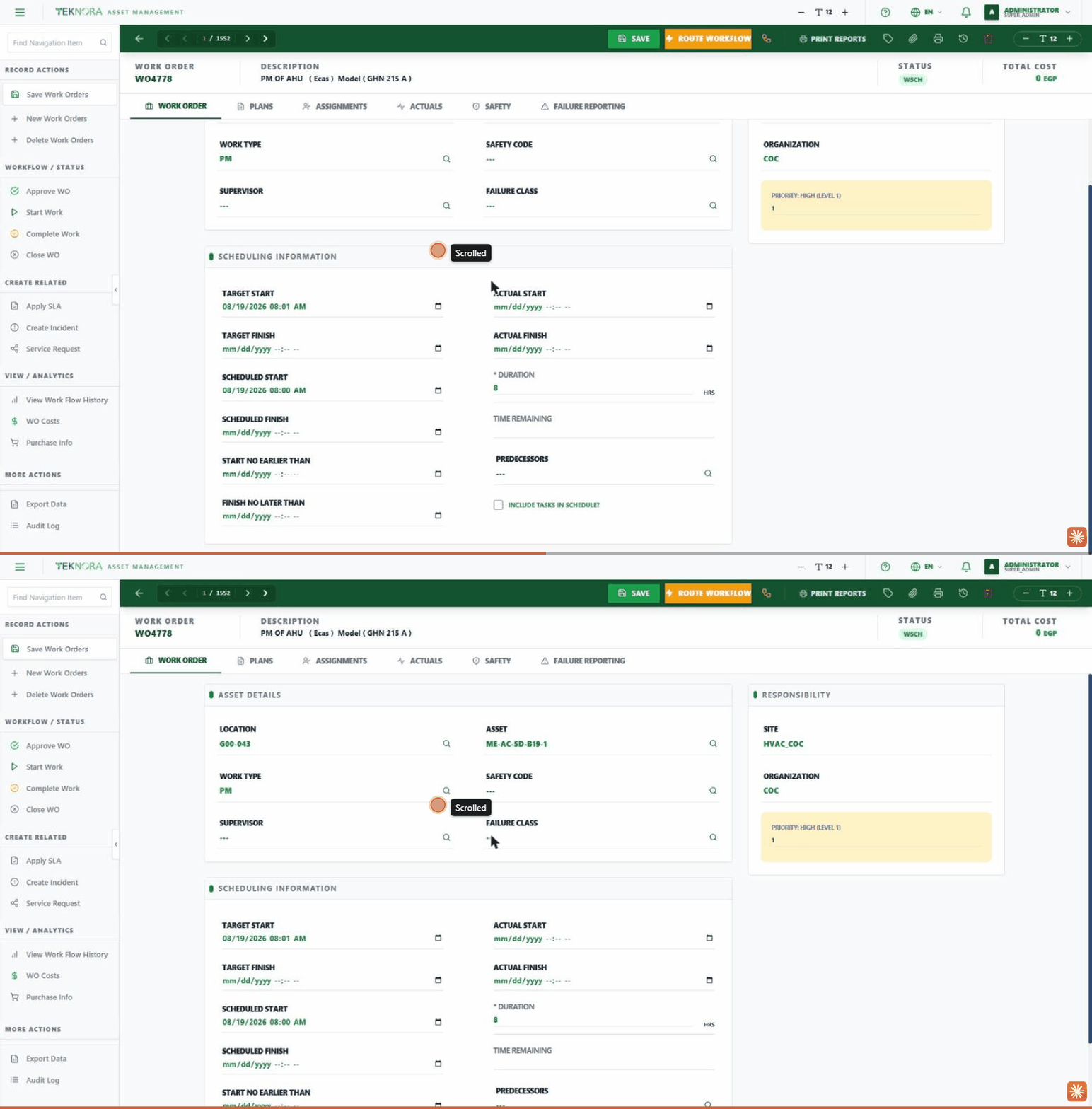
Top toolbar
| Button | Function |
|---|---|
| Save | Saves all changes across every tab at once |
| Route Workflow | Starts the formal approval route for the work order through the workflow engine |
| Change Status | Opens a window to pick any new status for the work order, after confirming there are no open assignments or budget overruns |
| Workflow History | Shows the history of approval steps the work order has gone through |
| Print Reports | Prints/exports a work order report |
| Attachments (📎) | Files and images attached to the work order |
| Audit Log | Shows the full change history of this record - who changed what, and when |
| Delete | Deletes the work order (unavailable if its status is approved, completed, or closed) |
Key fields
- WO Number: The work order's unique identifier - auto-generated on creation.
- Description: A short description of the work needed.
- Location and Asset: The physical location and asset linked to the work order.
- Work Type: PM preventive maintenance, CM corrective maintenance, or EM emergency work.
- Supervisor and Failure Class: Who's responsible for the work, and the failure classification (if any).
- Site / Organization: Auto-filled from the user's session on creation.
- Priority: The work order's maintenance priority.
- Scheduling info: Target/actual/scheduled start and finish dates, plus duration and time remaining.
Tabs
Each tab below opens an independent part of the work order's data, and any edit inside it is saved along with the rest of the screen when you click Save at the top.
1. Work Order
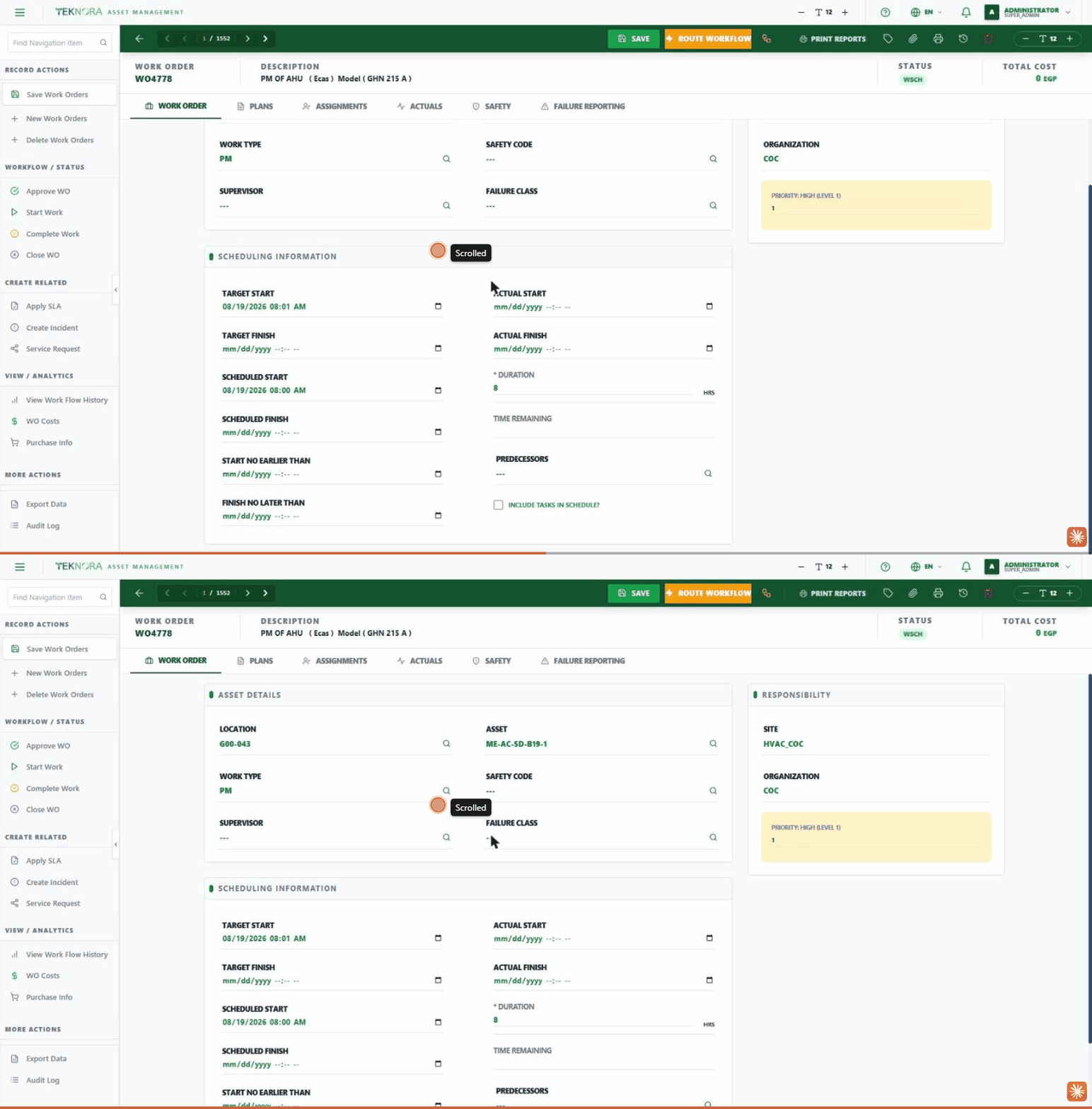
The main, default tab. Contains the linked asset and location details, responsibility info (site, organization, priority), and full scheduling info (target/actual/scheduled dates, duration, time remaining, and predecessors).
2. Plans
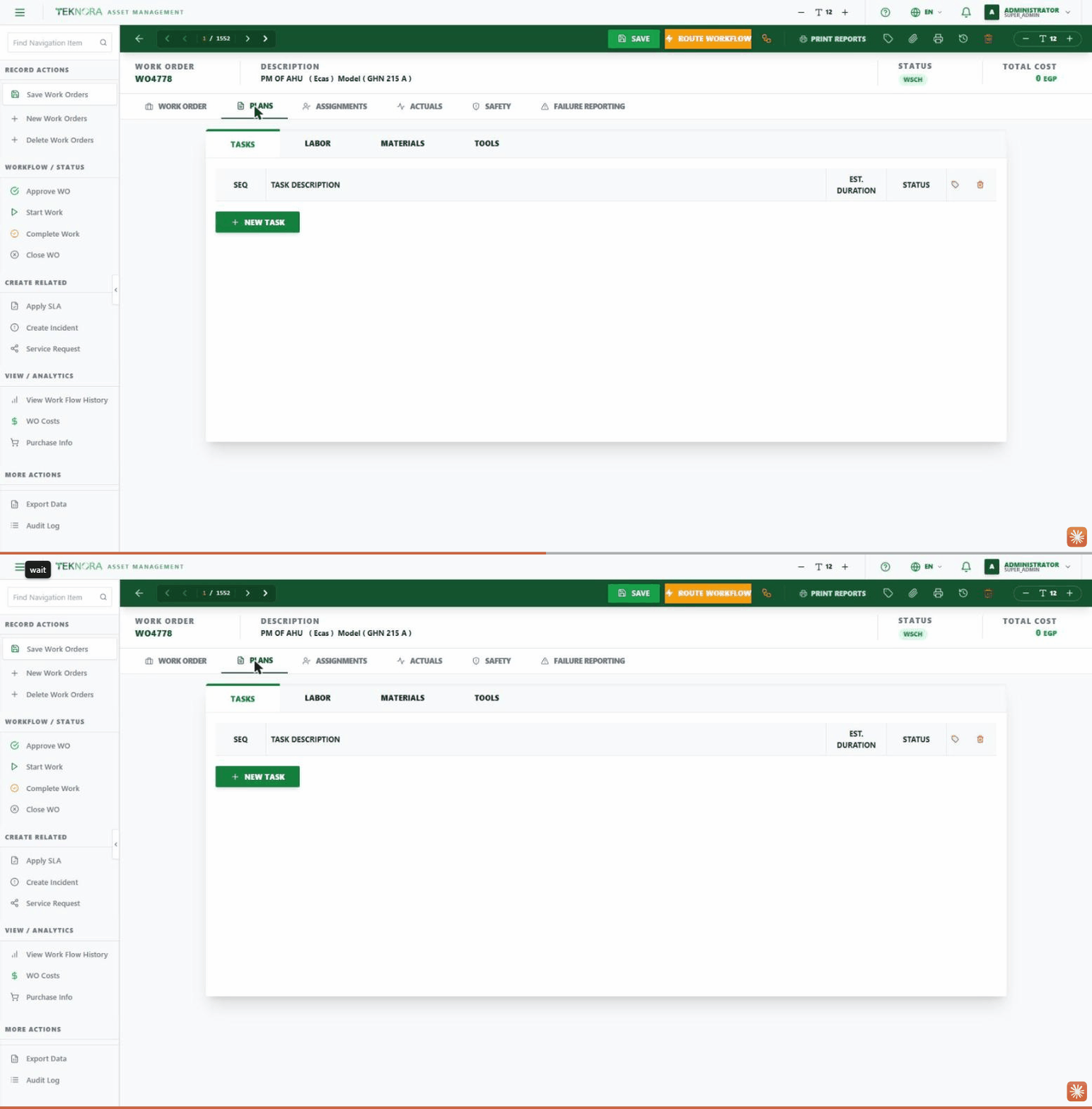
Contains four sub-tabs: Tasks to define the work steps in sequence, Labor to plan the craft, worker, and estimated hours, Materials to plan the items needed from stores, and Tools to plan the equipment needed for the job. This is the estimated plan before actual execution begins.
3. Assignments
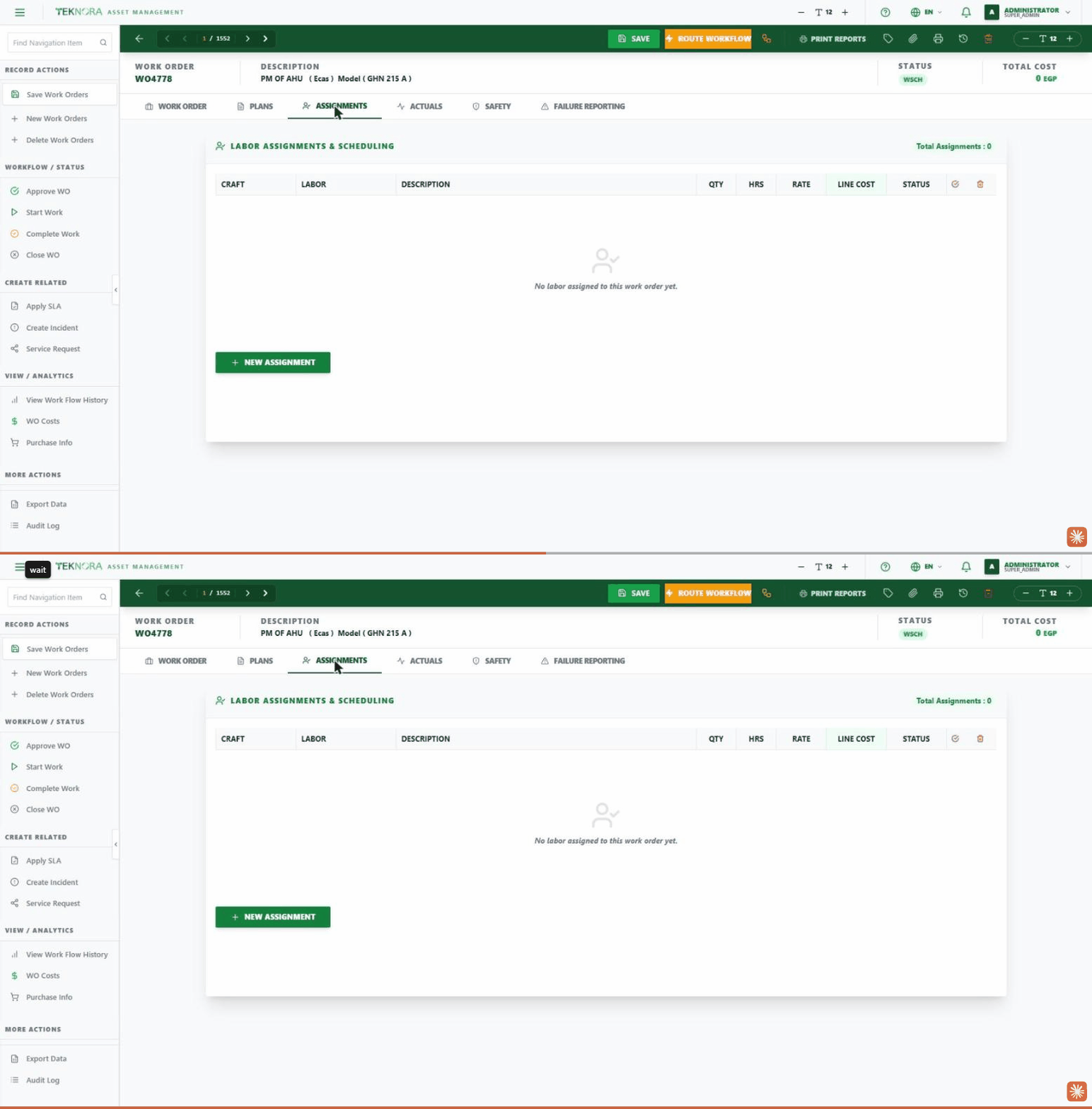
Scheduling for the labor actually assigned to carry out the work order - shows craft, worker, hours, and estimated cost, with the ability to mark each assignment as complete. All open assignments must be completed before a work order can be completed or closed.
4. Actuals
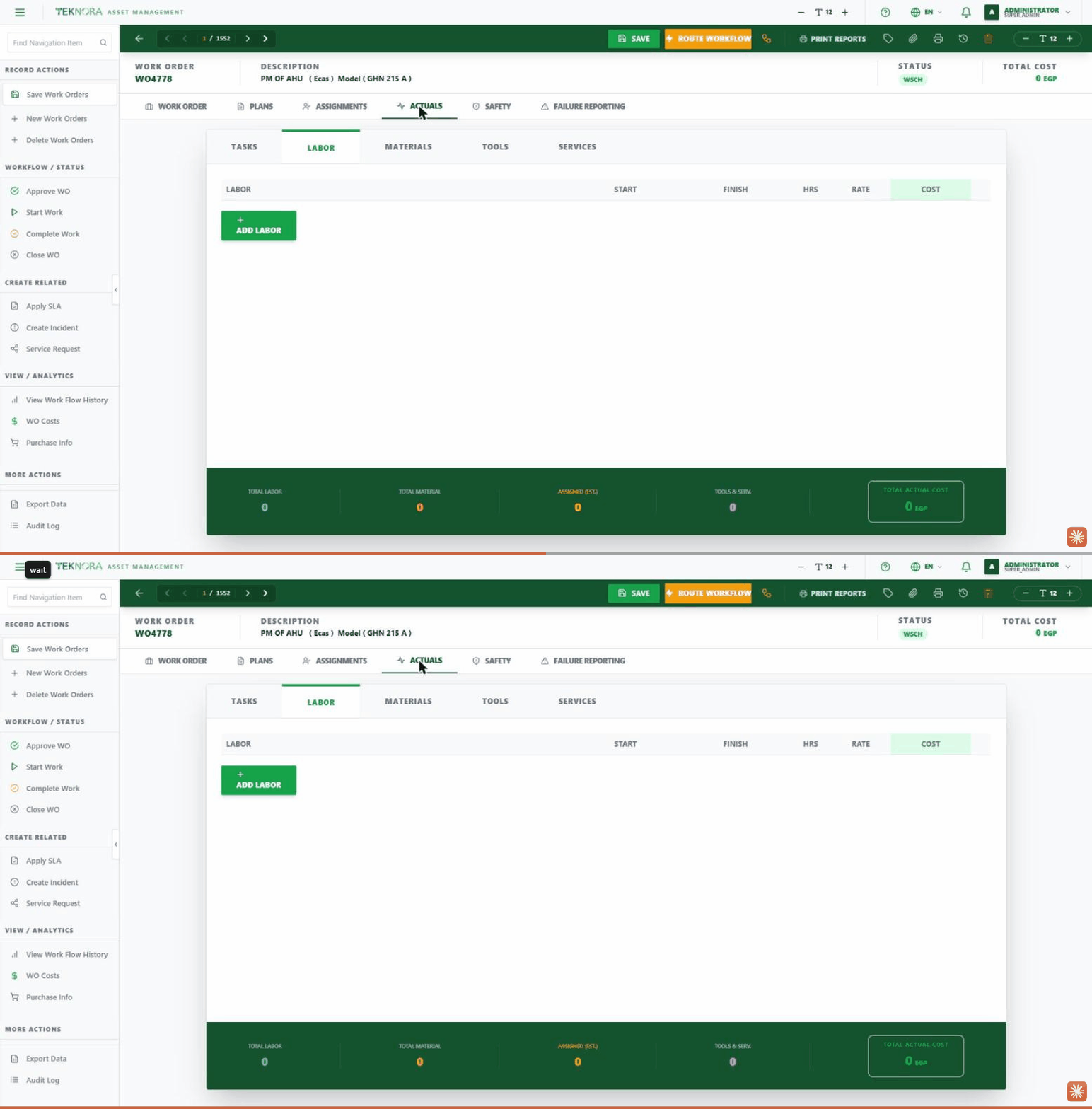
Contains five sub-tabs documenting what was actually done: Tasks to update their progress, Labor with actual start/finish times (hours and cost are calculated automatically), Materials actually consumed with the ability to create a Material Request (MR) directly, Tools, and linked external Services. A summary bar at the bottom totals each category and the overall actual cost.
5. Safety
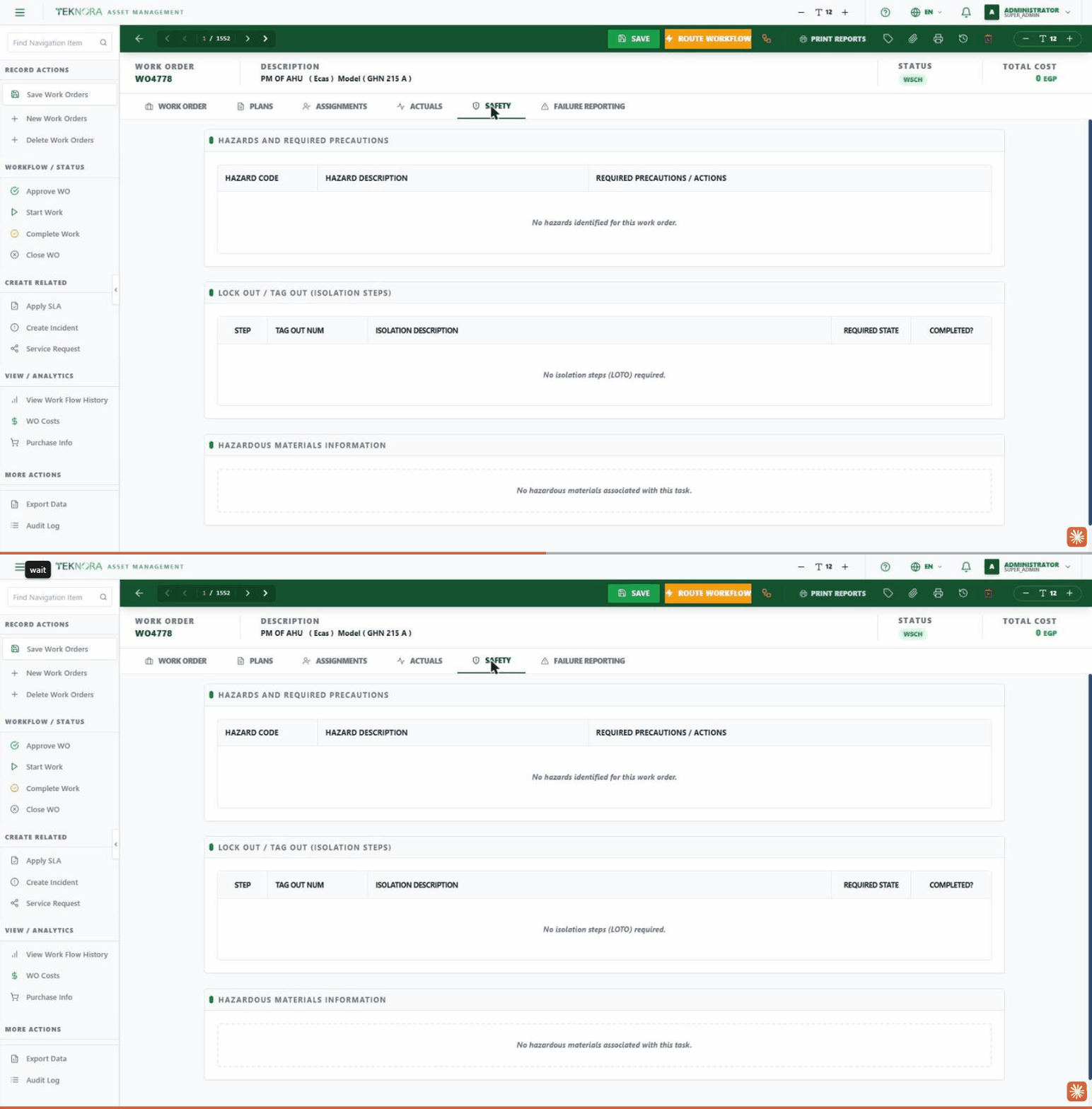
Hazards, lockout/tagout steps, and hazardous materials linked to the work order - often auto-imported from the asset's safety data. A maintenance technician must review this tab before starting work.
6. Failure Reporting
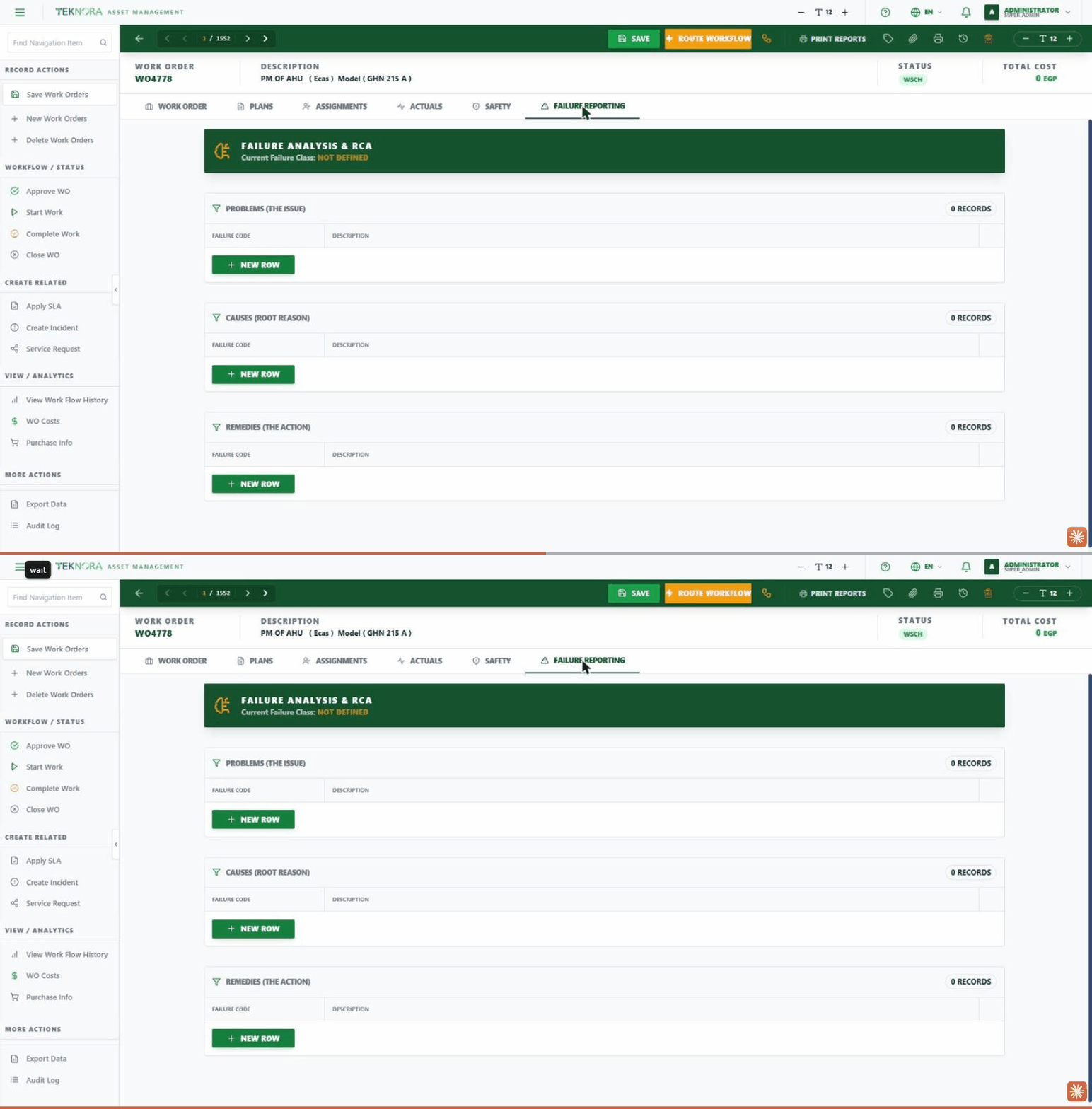
Root cause analysis (RCA) in three stages: Problems to document the observed symptom, Causes to document the root cause, and Remedies to document the corrective action taken. The current failure class linked to the work order is shown at the top of the tab.
Sidebar Actions
Alongside the tabs, the sidebar has a list of actions that open windows or run dedicated operations for the work order's workflow, instead of digging through the tabs.
Workflow / Status
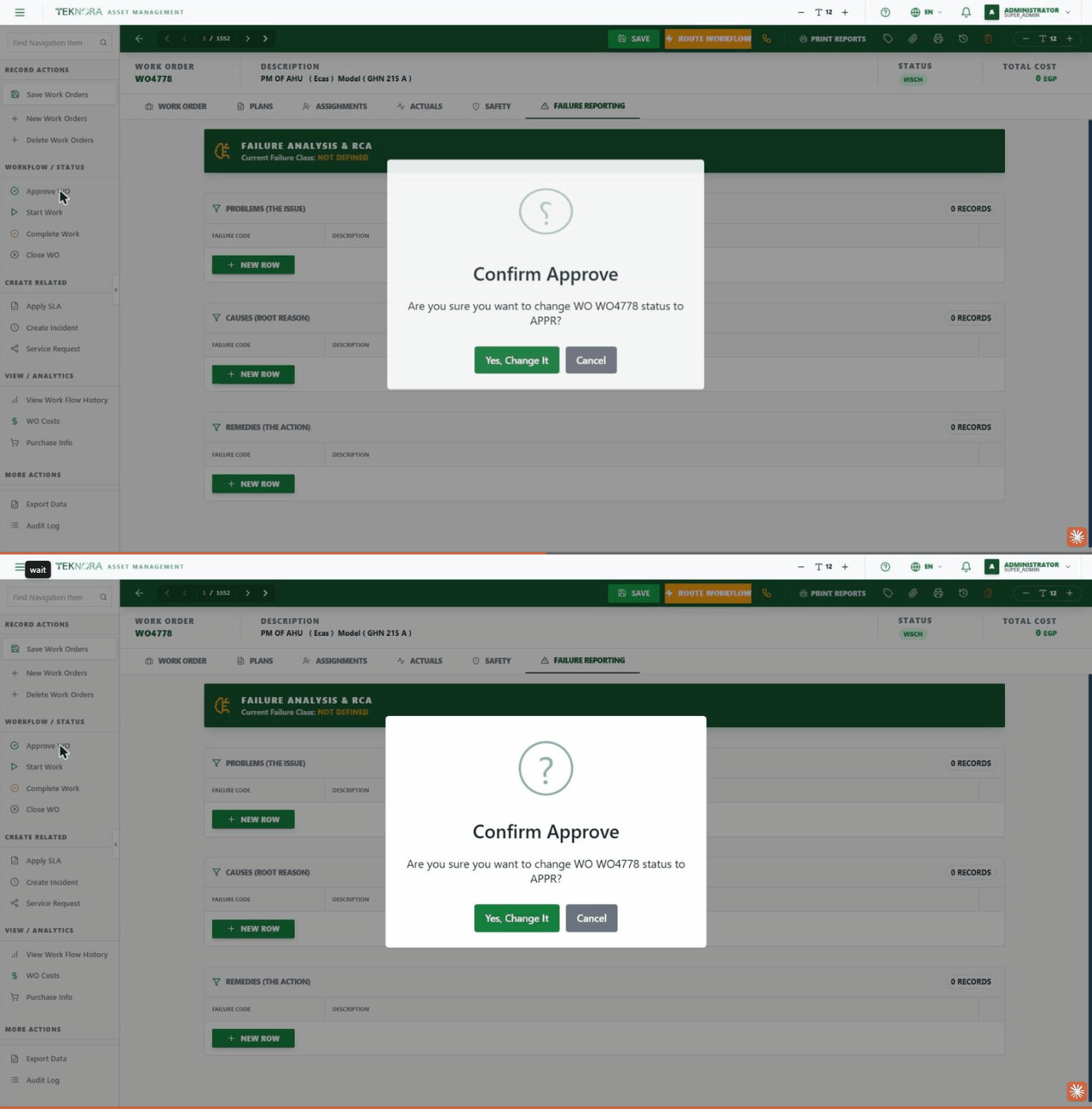
Approve WO: Moves the work order from "waiting for approval" to "approved" - only available in allowed statuses.
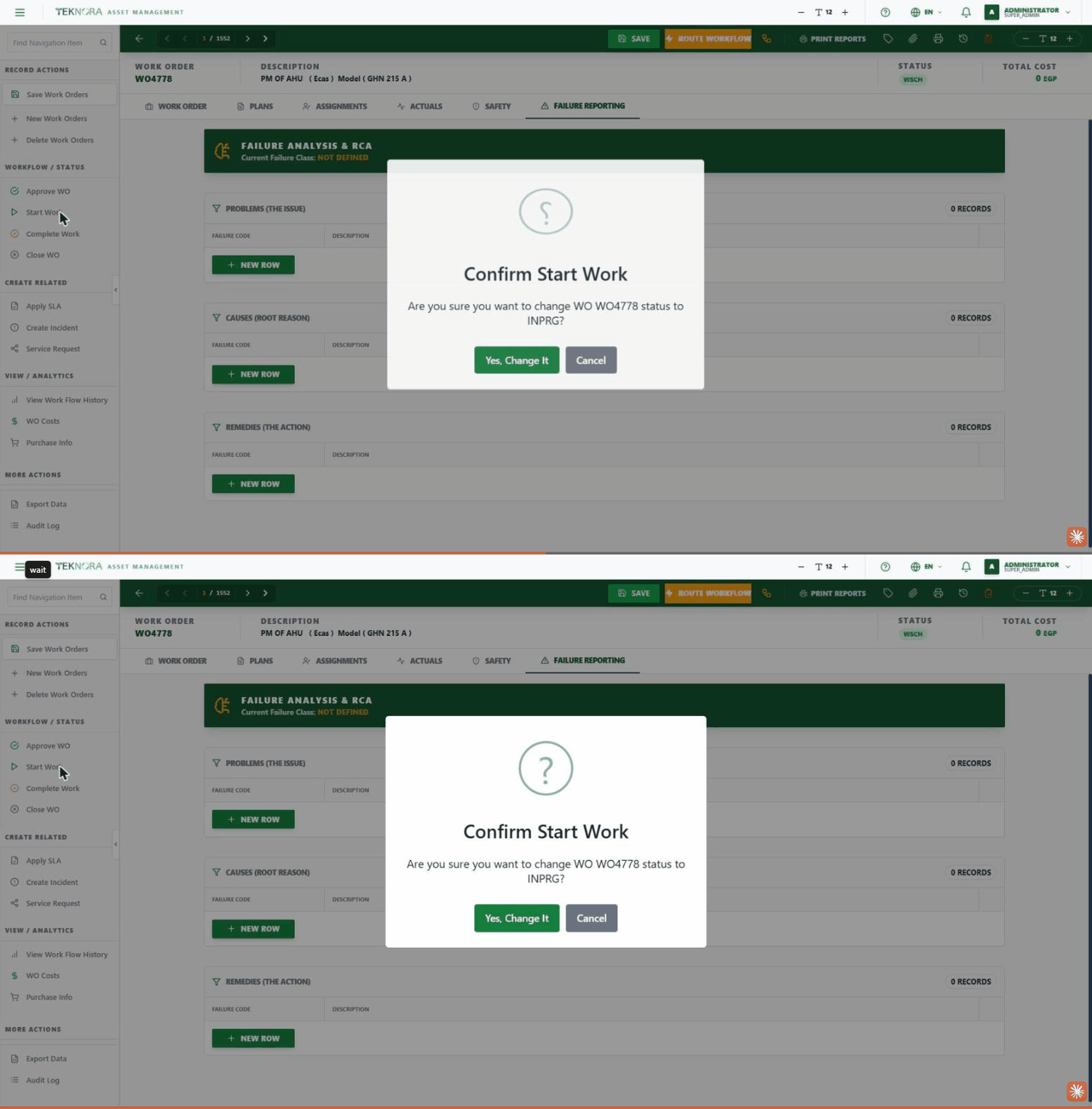
Start Work: Moves the work order to "in progress", and automatically copies everything planned (labor and materials) from the Plans tab into the Actuals tab as a starting point.
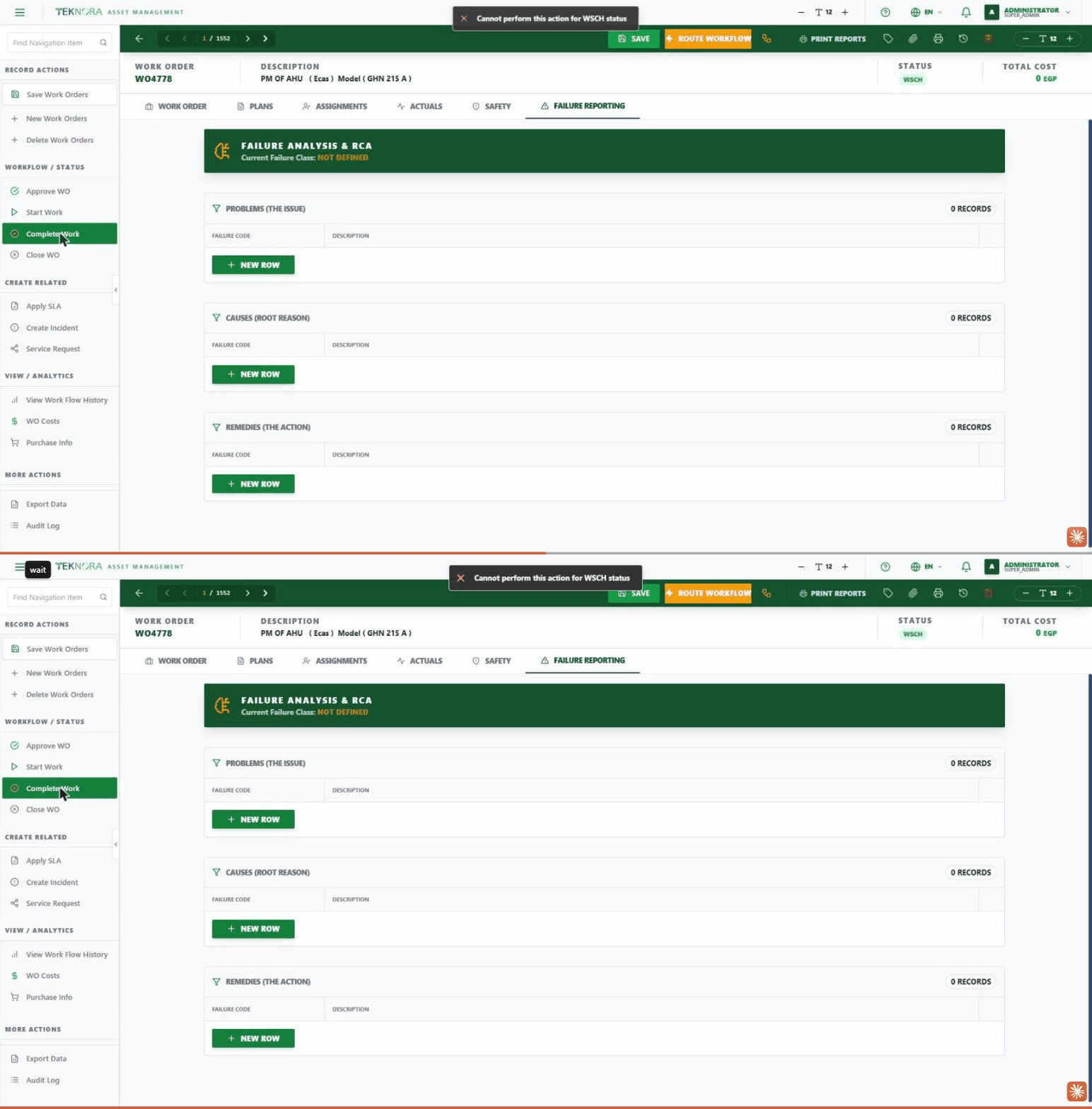
Complete Work: Moves the work order to "completed" after confirming there are no open assignments, and warns if actual cost exceeds the planned cost. The backend blocks completion if there are open material requests or no labor hours have been recorded.
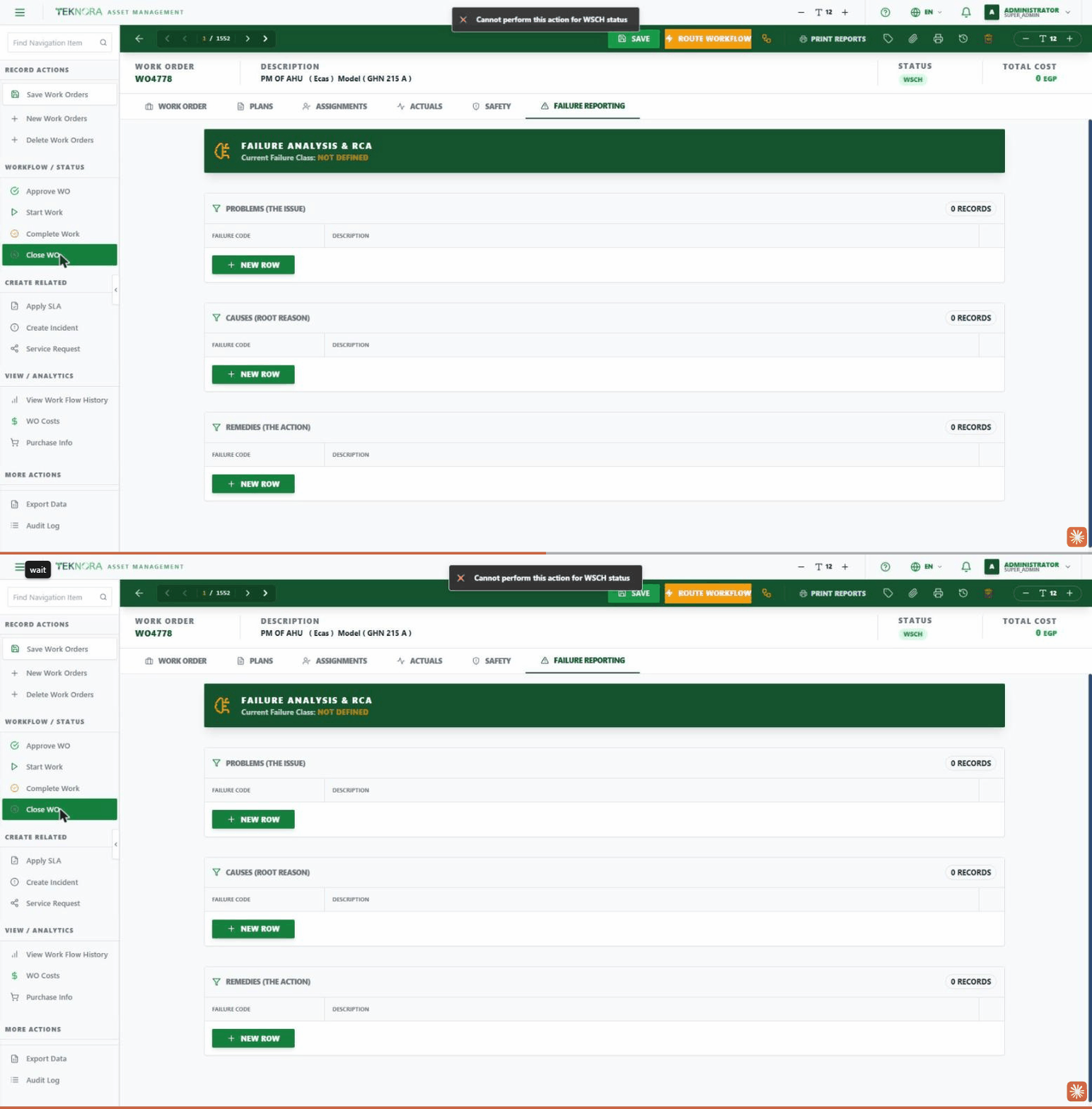
Close WO: The final step - only available once the work order is in "completed" status.
Create Related
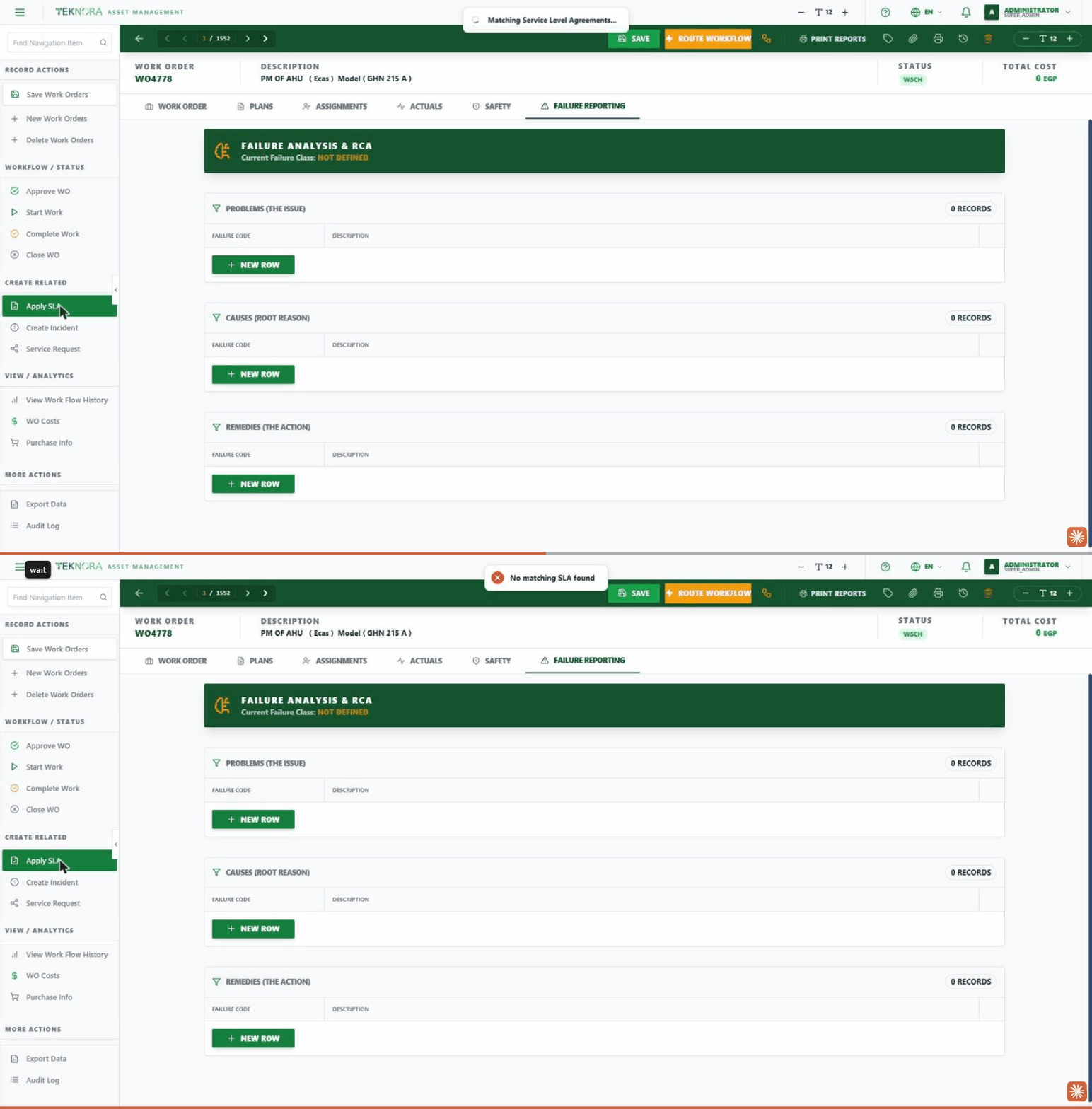
Apply SLA: Automatically searches for a matching Service Level Agreement and applies it to the work order - only available after saving the work order, and only once.
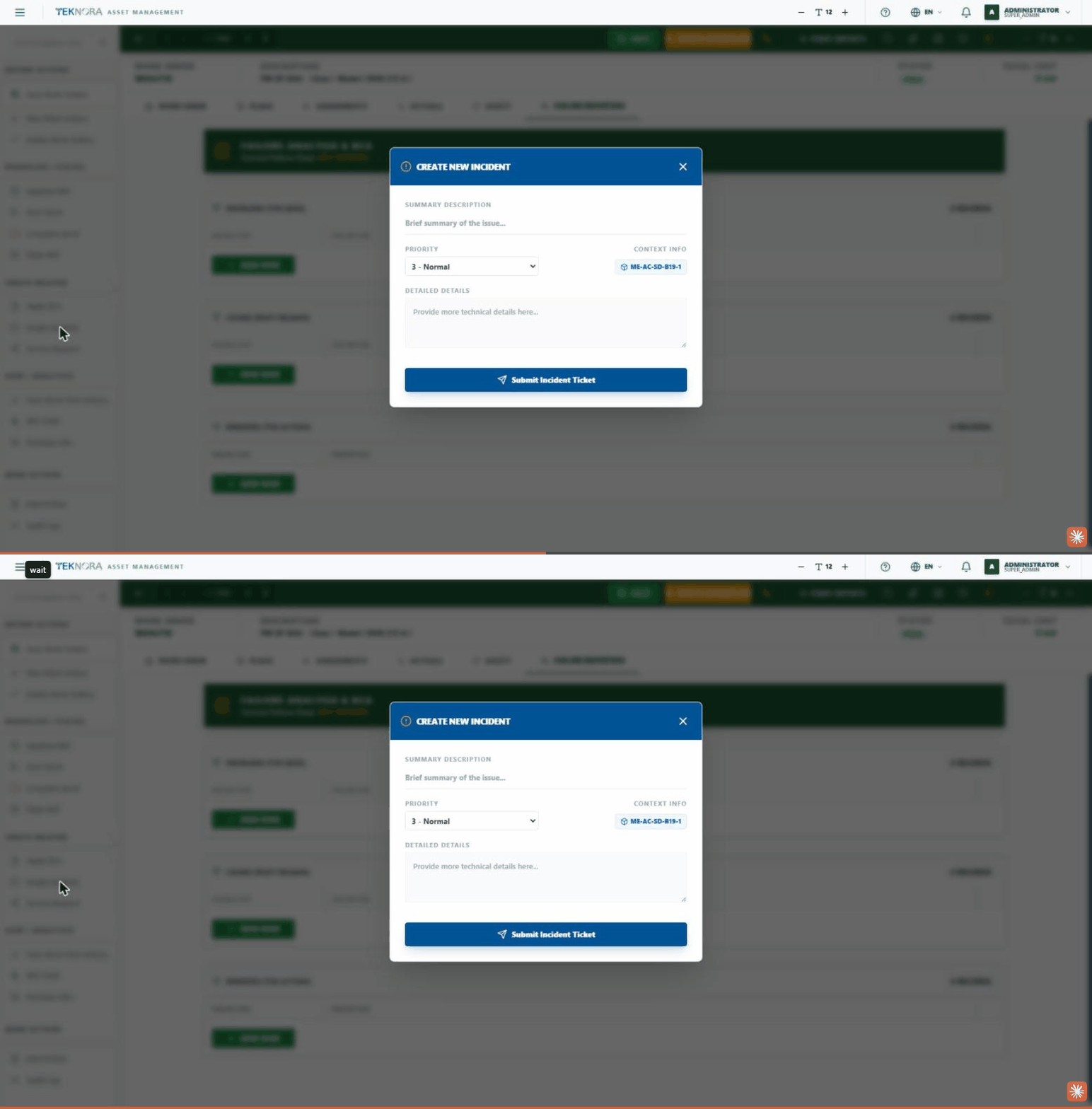
Create Incident: Logs a safety incident or emergency report linked directly to the work order.
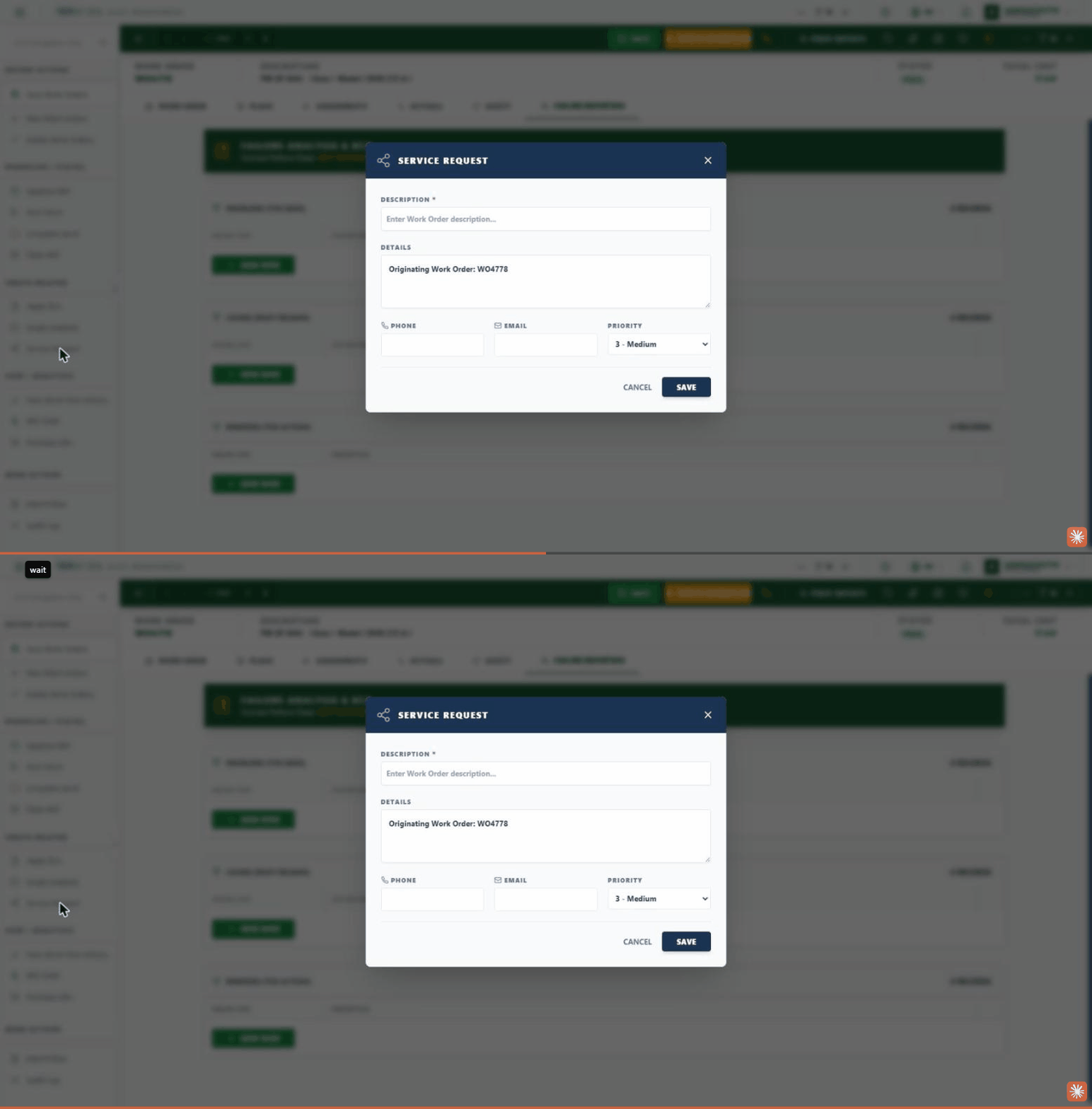
Service Request: Logs a service request linked to the work order - typically used for less urgent requests, or to link the original user request to the executed work order.
Analytics
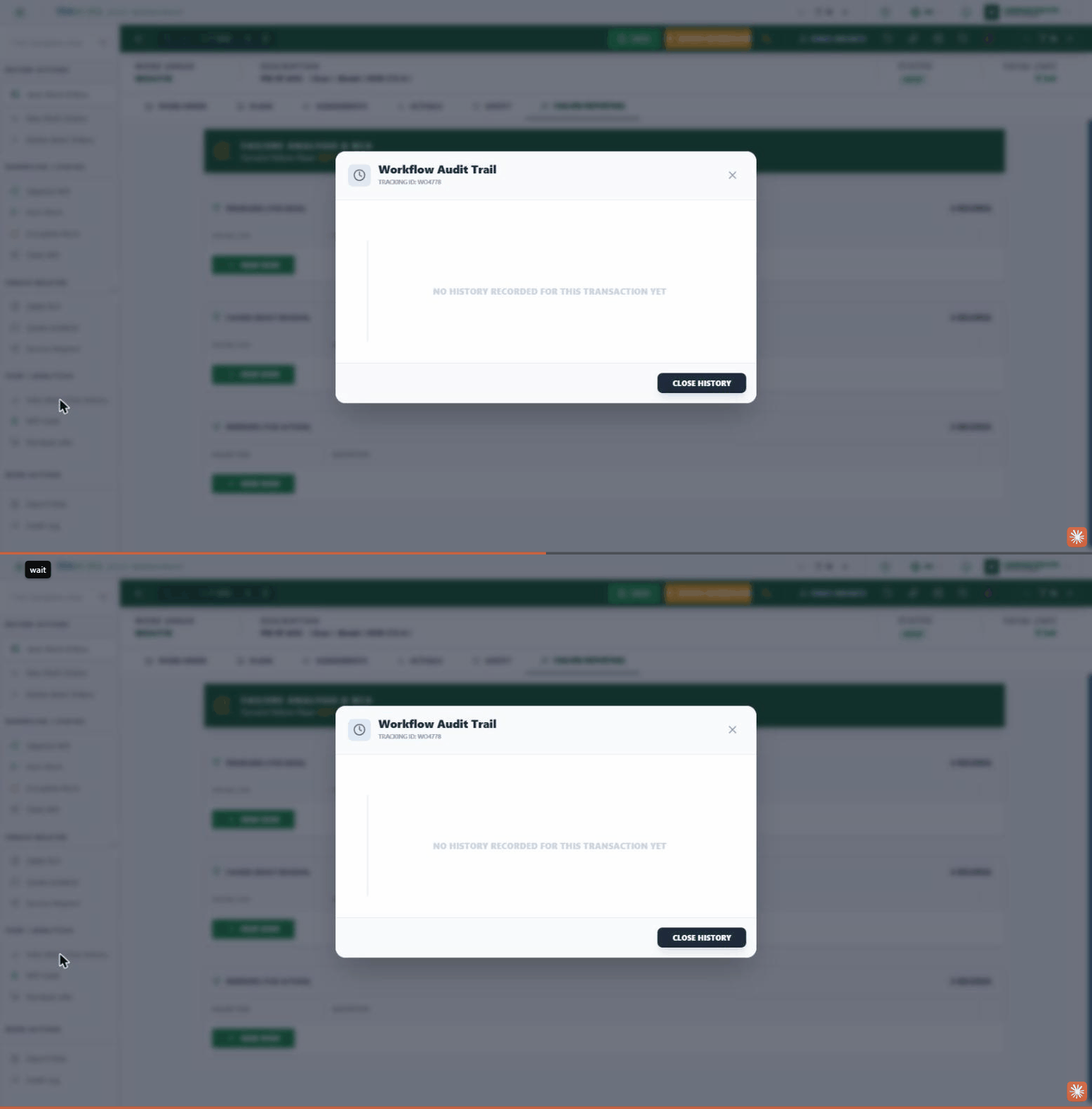
View Work Flow History: Shows every approval step the work order has gone through, who did it, and when.
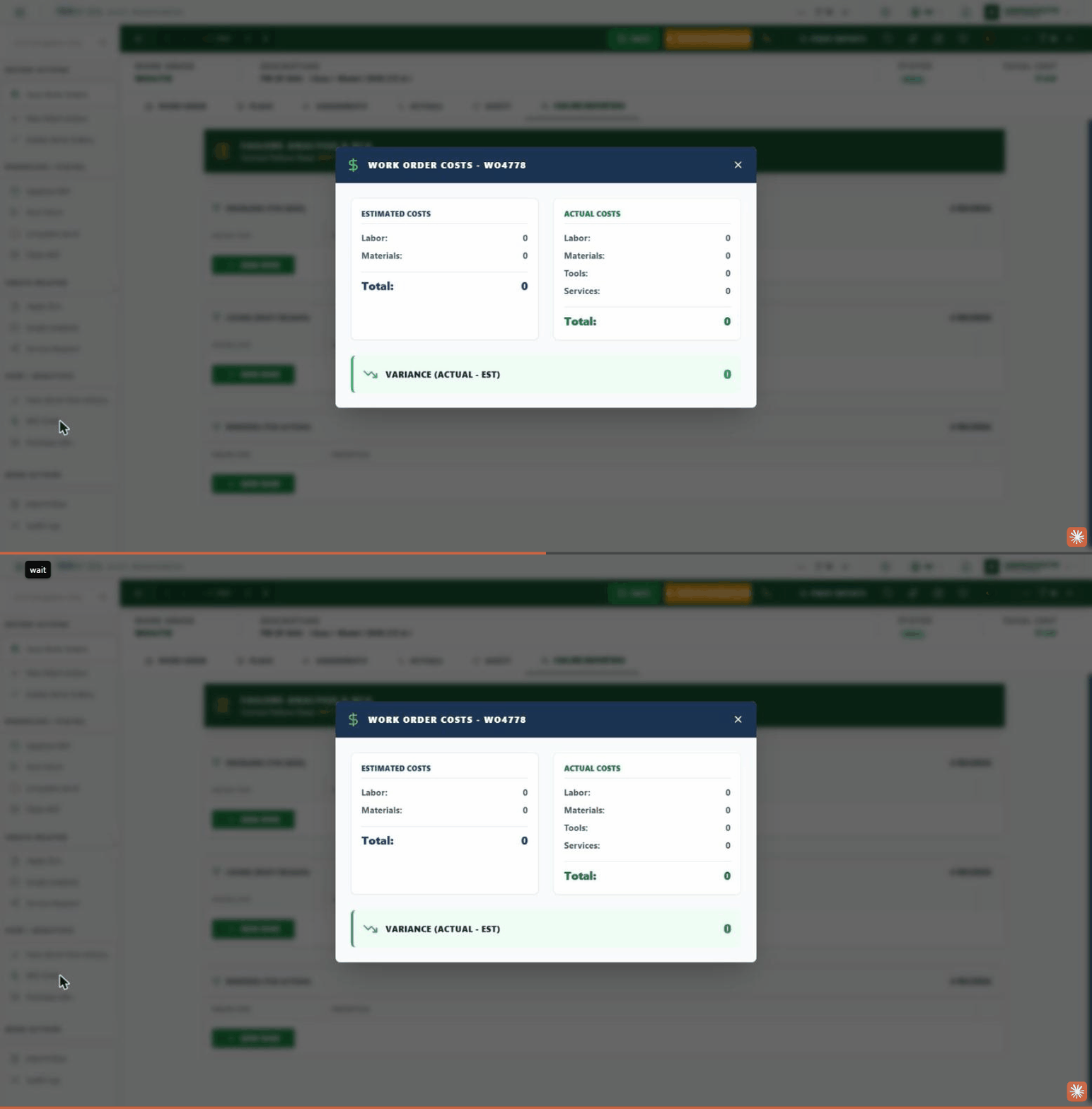
WO Costs: A full breakdown of labor, material, tool, and service costs - planned versus actual.
Purchase Info: Any purchase requests or purchase orders linked to the work order through material requests.
How to
1. Create a new work order
From the Work Order Tracking screen click New Work Order, fill in the required fields (description, location or asset), then click Save.
2. Plan the work before execution
Open the Plans tab, and add the estimated tasks, labor, materials, and tools needed.
3. Start execution and record actuals
Click Start Work from the sidebar, then record the actual hours and materials consumed in the Actuals tab as the work progresses.
4. Complete and close the work order
After finishing, complete all open assignments, then click Complete Work, and finally Close WO.
5. Review the change history (Audit Log)
Click Audit Log on the top toolbar. A table appears showing every change: who made it, when, and the difference between the old and new values.
Before completing or deleting
A work order can't be completed while it still has open labor assignments or unclosed material requests. Likewise, an approved, completed, or closed work order can't be deleted - use Cancel instead if no actual costs have been recorded on it yet.
FAQ
Why can't I complete the work order? Make sure there are no open Material Requests (MRs) linked to the work order, that at least one actual labor hour has been recorded, and that no assignments are left unmarked as complete.
What's the difference between Complete Work and Close WO? "Complete Work" means execution has finished and all costs are recorded, while "Close WO" is the final confirmation after review - and can only be reached after completion first.
Back to: Work Order Tracking ←