Work Order Tracking
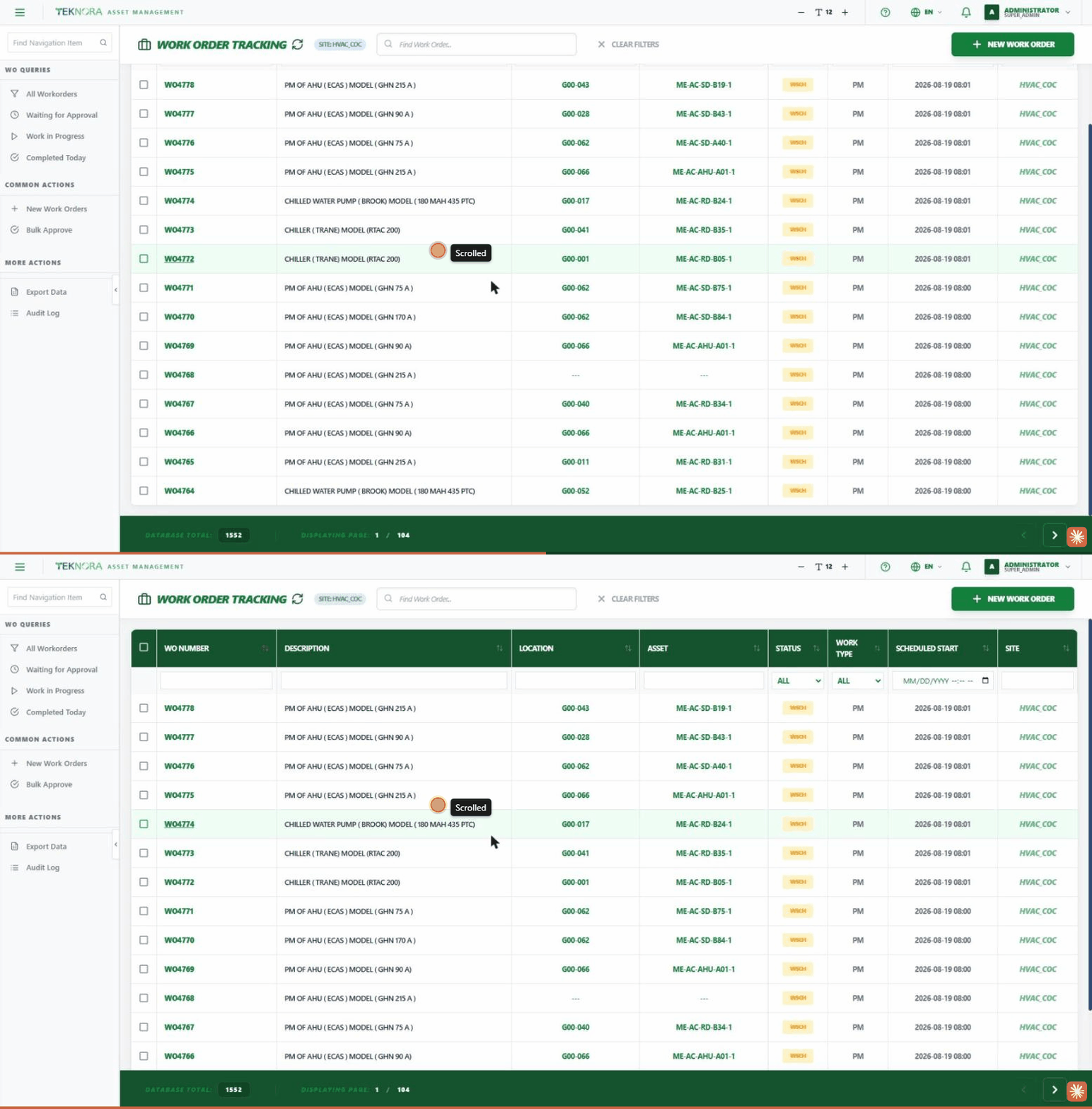
The Work Order Tracking screen is where every work order in the system is managed - preventive maintenance, corrective repairs, and emergency work - from tracking them to opening any order's details.
Purpose of this screen
- Browse all work orders registered in the organization/site.
- Search and filter for a specific work order quickly (by number, description, status, type...).
- Open any work order's details screen by clicking on it.
- Create a new work order.
Key screen elements
| Element | Function |
|---|---|
| New Work Order | Opens an empty details screen to enter a new work order |
| Search box | Quick text search on WO number or description |
| Scope badge (Site / Global View) | Shows whether you're viewing one site or all sites |
| Sortable column headers | Click any column (WO number, description, status...) to sort ascending/descending |
| Filter row | Right below the column headers - type or select in any column to filter by it |
| Clear Filters | Resets all applied filters at once |
Table columns
- WO Number: The work order's unique identifier.
- Description: A short description of the work needed.
- Location: The physical location linked to the work order.
- Asset: The asset linked to the work order (if any).
- Status: The work order's current status (waiting for approval, in progress, completed...).
- Work Type: Classifies the work order (CM corrective, PM preventive, EM emergency...).
- Scheduled Start: The scheduled start date/time for the work.
- Site: The organizational site the work order belongs to.
Sidebar Queries
Alongside the table, the sidebar offers ready-made queries to filter the list with one click:
- All Workorders: Show every order with no filter.
- Waiting for Approval: Orders not yet approved.
- Work in Progress: Orders actively being worked on.
- Completed Today: Orders finished during the current day.
The Common Actions section also offers quick shortcuts like New Work Orders and Bulk Approve to approve multiple work orders at once.
How to
1. Search for a specific work order
Type the WO number or part of the description in the top search box, or use the filter row below the column headers to filter a specific column (like status or work type).
2. Open a work order's details
Click any row in the table to open its Work Order Details screen.
3. Create a new work order
Click New Work Order at the top of the screen. An empty details screen opens for you to enter the new order's data and save it.
4. Approve multiple work orders at once
Select the required work orders from the table, then use Bulk Approve from the sidebar.
5. Sort by a specific column
Click any column header - the first click sorts ascending, the second sorts descending.
About scope
If you're an admin or have "all sites" permission, you'll see a badge indicating whether you're viewing all sites or just one. This affects how many work orders appear.
FAQ
Why can't I find a specific work order? Make sure the site filter is set correctly, and that no leftover text filter in the filter row is hiding it.
What's the difference between PM, CM, and EM work types? PM is routine, pre-scheduled preventive maintenance; CM is corrective maintenance to fix an actual failure; EM is emergency work requiring immediate attention.
Go to: Work Order Details screen →