Material Request Details
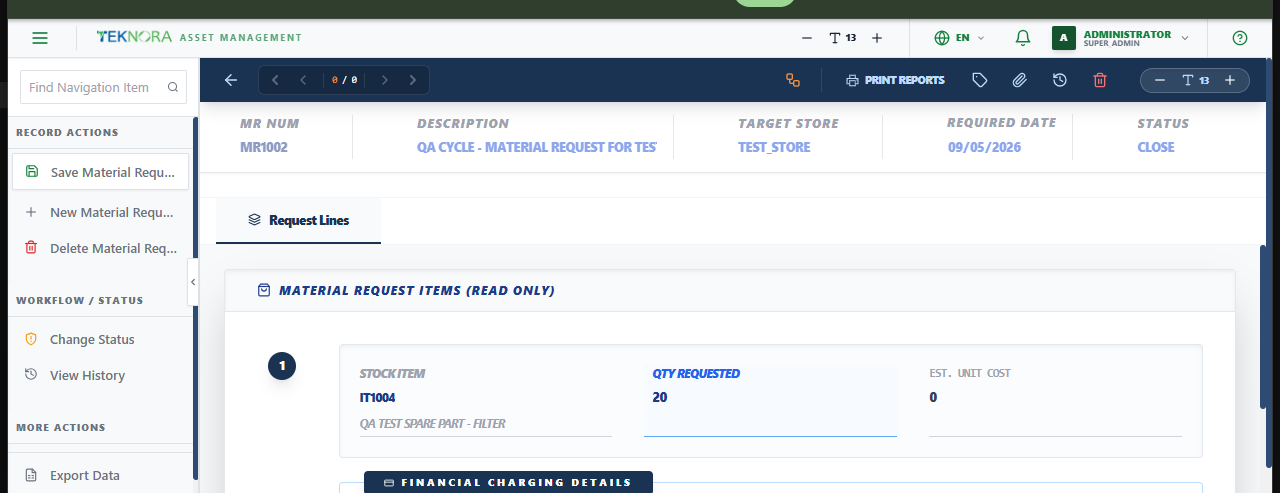
This screen holds one material request's header and its requested items - and is where, once approved, you decide whether to issue it from stock or turn it into a purchase.
Screen layout
The header shows MR Num, Description, Target Store, Required Date, and Status. Below it, Material Request Items lists each requested item with its quantity and estimated unit cost, plus optional financial charging (charge to location, asset, or work order).
Top toolbar actions
| Icon/Button | Function |
|---|---|
| Save | Saves the header and lines |
| Route Workflow | Sends the record into its approval workflow (if configured) |
| Change Status (tag icon) | Opens the status-change dialog |
Create Usage (appears once APPR) |
Generates an Issue/Transfer transaction from this MR's lines |
Create PR (appears once APPR) |
Generates a Purchase Request from this MR's lines |
How to
1. Create and fill in a request
Enter a description, pick the Target Store, add material lines, and save.
2. Approve it
Click the status icon, choose APPR, and confirm.
3a. Issue directly from stock
If the target store already has enough on hand, click Create Usage - an Issue/Transfer transaction is generated with this MR's lines, ready to complete.
3b. Turn it into a purchase
If stock isn't available, click Create PR instead - a Purchase Request is generated with this MR's lines and target store, ready to move through approval → PO → Receiving.
FAQ
Why don't I see Create Usage/Create PR?
Both only appear once the MR's status is APPR - approve it first.
Can I do both - issue some and purchase the rest? Not from one MR directly. Create Usage for what's available, and handle the shortfall through a separate PR (or let the inventory reorder worker generate one automatically if the item is below its reorder point).
Go to: Material Requests list ← · Issues & Transfers → · Purchase Requests →