RFQ (Request for Quotation)
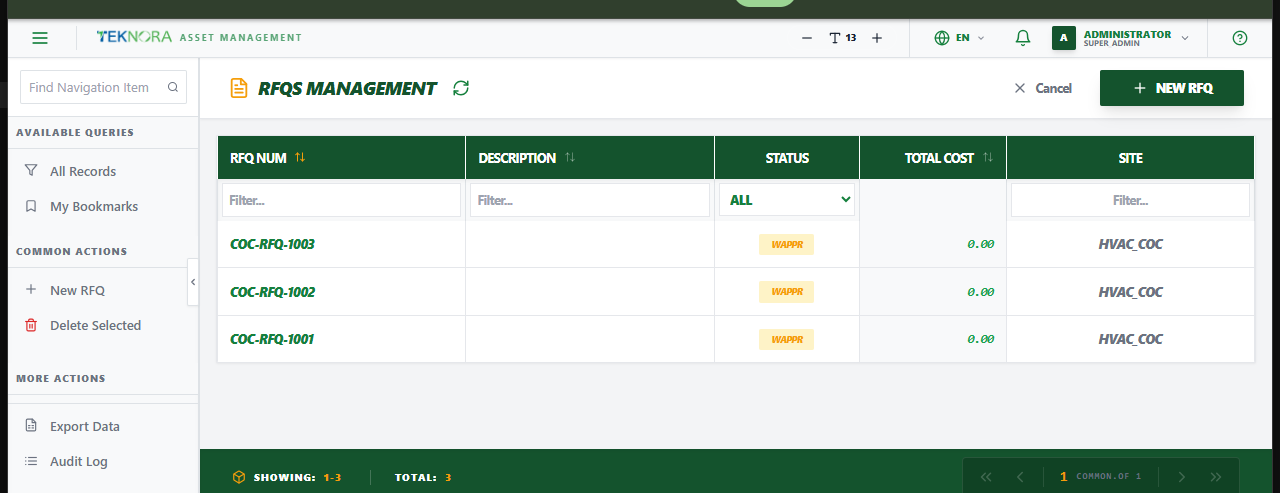
The RFQ screen manages requests for quotation sent to vendors - comparing prices from multiple suppliers before committing to a Purchase Order.
Purpose of this screen
- Browse all RFQs and their status.
- Search and filter by RFQ number, description, or status.
- Open any RFQ to add lines, email vendors, review incoming quotes, and award the winning one.
- Create a new RFQ.
Table columns
- RFQ Num: The RFQ's unique identifier.
- Status: Current status, including
AWARDEDonce a quote has been accepted.
How to
1. Create an RFQ
Click New RFQ, optionally pulling lines from a reference Purchase Request, then save.
2. Send it to a vendor
Open the RFQ and click Send Email - the vendor's email address must be on file first.
3. Review incoming quotes
Vendor replies (including PDF quotes) are picked up automatically by the system's email monitor and appear under the Quotations tab. Each quote shows the vendor and total amount.
4. Award a quote
From the Quotations tab, click Award & Create PO on the winning quote - this marks it as awarded and generates a Purchase Order automatically.
FAQ
A vendor's quote didn't show up automatically - why? The system reads incoming emails against the RFQ number and vendor's registered email/PDF content. If either doesn't match cleanly, the quote won't be linked automatically - enter it manually if needed.
Go to: RFQ Details screen →