RFQ Details
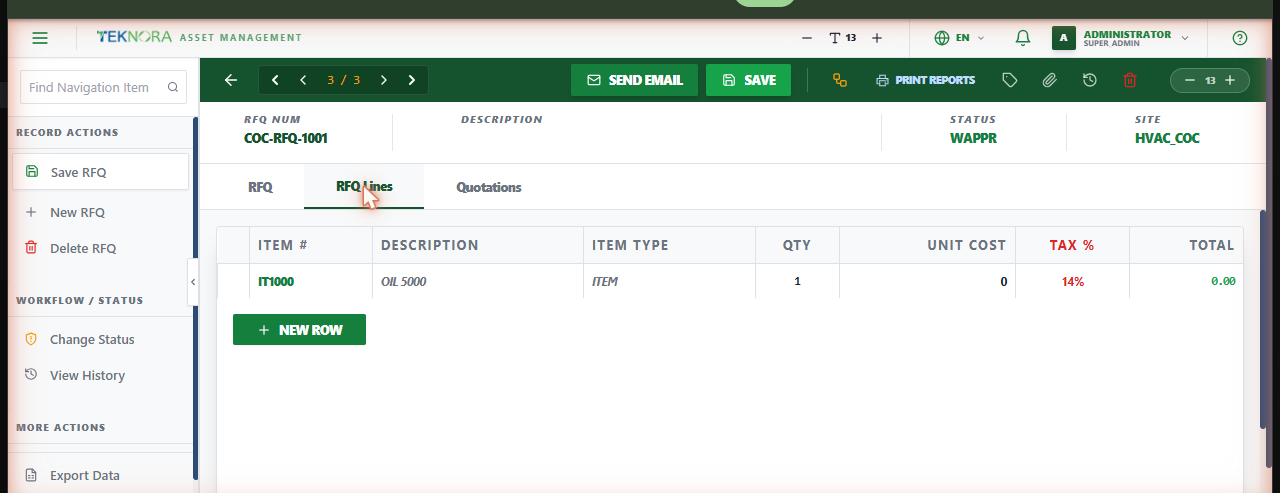
This screen holds one RFQ's header, its requested lines, and the quotations received from vendors in reply.
Screen layout
Three tabs organize the record:
- RFQ: General information and financial summary.
- RFQ Lines: The items/services being quoted, with unit cost and tax.
- Quotations: Every quote received from a vendor for this RFQ, with the option to award one.
Top toolbar actions
| Icon/Button | Function |
|---|---|
| Save | Saves the header and lines |
| Send Email | Emails the RFQ to the vendor on file |
| WF History | Shows the workflow history |
How to
1. Build the RFQ's lines
Pull them from a reference Purchase Request, or add manually - same line style as PR/PO lines.
2. Send to vendors
Click Send Email. Repeat for each vendor you want a quote from (send separate RFQs per vendor, or resend as needed).
3. Award the winning quote
Open Quotations, review the received amounts, and click Award & Create PO next to the one you're accepting. This automatically creates a Purchase Order with that vendor and pricing.
FAQ
Can more than one quote be awarded? No - awarding marks the RFQ's outcome and generates the PO from that specific quote. If you need a second order from a different vendor, create it separately.
Go to: RFQ list ← · Purchase Orders →