Tool Details
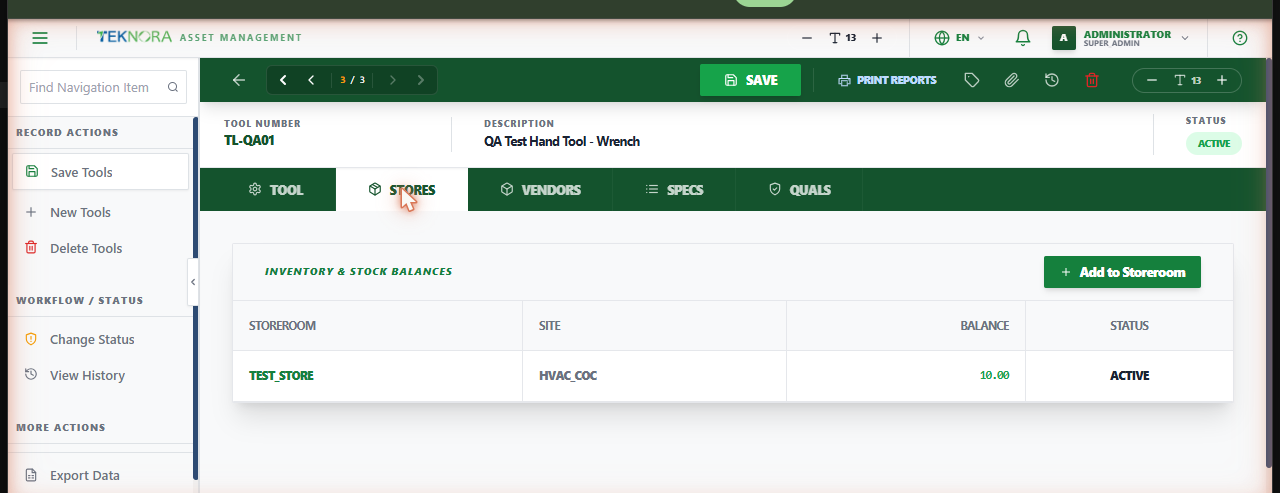
This screen holds one tool's master definition and, for stocked tools, its balance across storerooms.
Screen layout
- Tool: Configuration - tool type, issue unit, manufacturer, model number, and the Is Stocked Tool? / Rotating Item? / Calibration Required? flags.
- Stores: Inventory & stock balances for this tool across every storeroom it's assigned to (only meaningful for stocked tools).
- Vendors, Specs, Quals: Supplier history, specifications, and any qualification/certification requirements.
How to
1. Create a new tool
Enter a description and tool type. Check Is Stocked Tool? if you'll track quantity in a storeroom, and save.
2. Give the tool an opening balance
Open the Stores tab and click Add to Storeroom. Search the storeroom, enter Opening Qty and Unit Cost - confirm to finalize the tool's stock in that store.
FAQ
I can't find a Stores/balance tab that lets me add stock - why? Only tools with Is Stocked Tool? checked show a stock-adding option. Rotating tools are received individually through Purchase Orders and Receiving instead, each creating its own asset.
Go to: Tools list ← · Inventory Balances →