Purchase Order Details
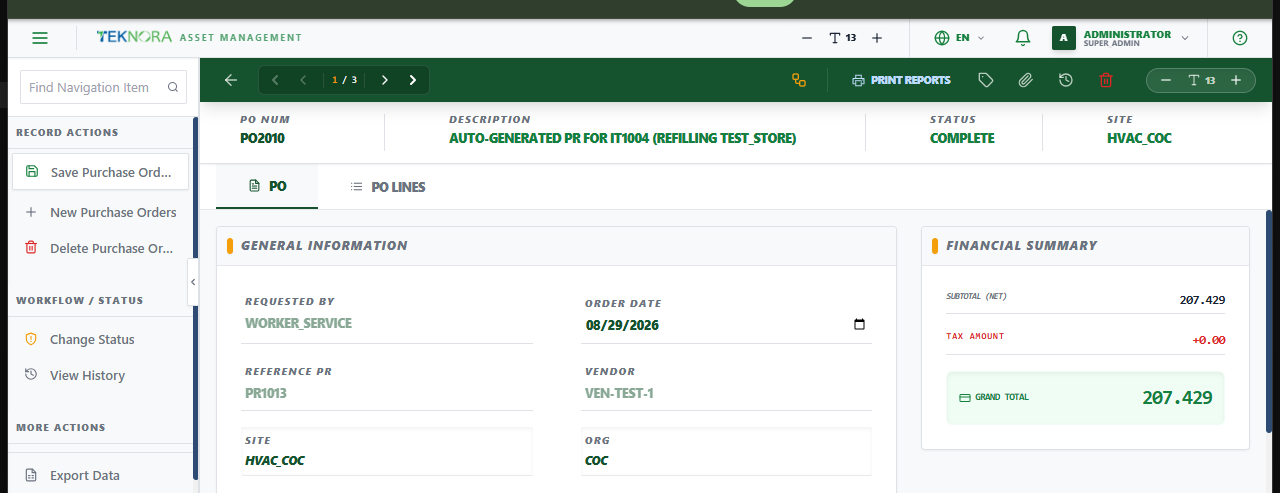
This screen holds everything about one purchase order: header information, financial summary, and the individual order lines - and is where you approve it, print it, attach documents, and track its history.
Screen layout
The header bar shows the PO Num, Description, Status, and Site. Below it, two tabs organize the record's content:
- PO: General information (requested by, order date, reference PR, vendor, site/org) and the Financial Summary card (subtotal, tax, grand total).
- PO Lines: The individual items/tools being ordered, styled as a master table with a detail panel for the selected line.
Top toolbar actions
| Icon/Button | Function |
|---|---|
| Save | Saves the current header and all lines |
| Route Workflow | Sends the record into its approval workflow (if configured and applicable) |
| Change Status (tag icon) | Opens the status-change dialog (WAPPR → APPR → ...) |
| Print Reports | Prints/exports the PO using an available report template |
| Attachments (paperclip) | Attach or view files linked to this PO - badge shows the count |
| History (clock icon) | Shows the PO's status change history |
| Delete (trash icon) | Deletes the record - only available while WAPPR and unreceived |
| Navigation arrows | Move to the first/previous/next/last PO matching your last list filter |
PO Lines tab
Each line shows Item #, Description, Item Type, Qty, Unit Cost, Tax %, and Line Total. Click a row to open its detail panel below the table, where you can search/change the item, quantity, unit cost, tax category, or GL account.
- Add Manual Row: Adds a blank line to fill in directly.
- Delete (trash icon per row): Removes a line - blocked once the PO is no longer editable.
Lines lock once the PO is approved, completed, cancelled, or closed
You can't add, edit, or delete lines on a PO whose status is APPR, COMPLETE, CAN, CLOSE, or CLOSED - both in the interface and on the server. Reopen the workflow or create a new PO instead.
How to
1. Create a PO from scratch
Fill in Vendor (required), Required Date, and add lines via Add Manual Row or by searching an item. Save.
2. Pull lines from a Purchase Request
Search Reference PR for an approved PR - its lines are pulled in automatically with quantities and costs.
3. Approve a PO
Click the status (tag) icon, choose APPR, and confirm. A vendor must be set first.
4. Track receiving status
Once approved, the PO becomes available in Receiving. As lines get received, the PO's status updates automatically to PARTIAL or COMPLETE.
5. Close the purchase financially
Physical receiving only settles quantity. To record the final cost (including any landed cost) and lock it in against inventory valuation, create a Purchase Invoice referencing this PO, then approve it.
FAQ
The Financial Summary doesn't match what I expect - why? It's computed live from the lines: Subtotal = Σ(qty × unit cost), Tax = Σ(line tax at each line's tax rate), Grand Total = Subtotal + Tax. Landed cost (freight, customs, etc.) is not part of this screen - that's recorded on the Purchase Invoice.
I approved the PO but can't edit a line I made a mistake on - what now? Reopen it via a status change if your workflow allows it, or create a new PO/line correction. Editing an approved PO's lines directly is blocked deliberately, since vendors and receiving may already be acting on it.
Go to: Purchase Orders list ← · Receiving → · Purchase Invoices →