Item Details
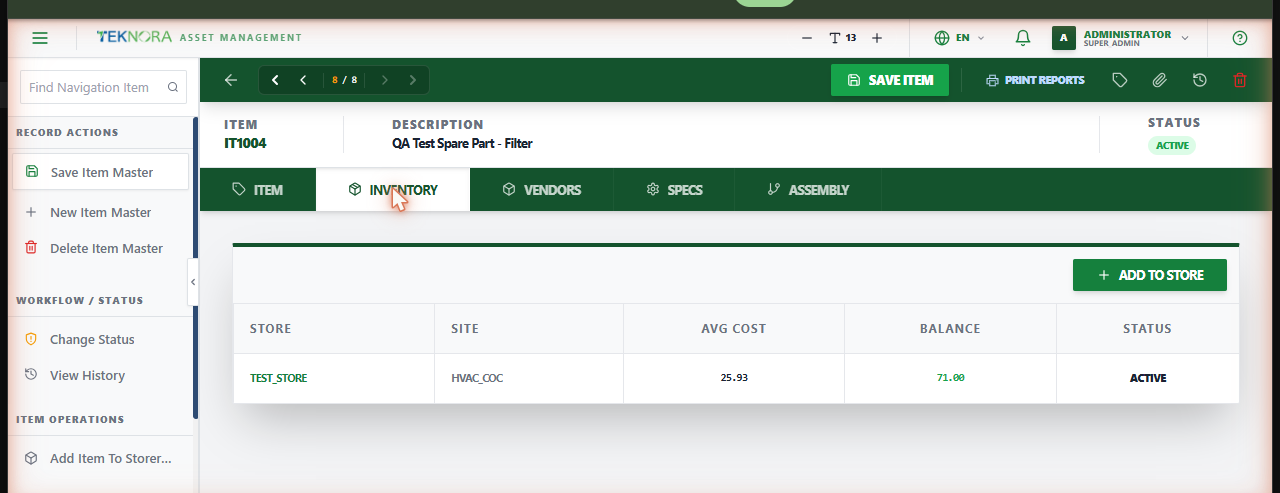
This screen holds one item's master definition, its balance in every storeroom it's assigned to, vendor/pricing history, specifications, and assembly (BOM).
Screen layout
- Item: Configuration (order unit, issue unit, rotating/spare-part/condition-enabled/lot-control/inspection-required flags, item type, status).
- Inventory: Every storeroom this item is stocked in, with balance, average cost, and status per store.
- Vendors: Purchase history by vendor, pulled from past receipts.
- Specs: Technical specifications, populated from the item's classification if one is assigned.
- Assembly: The item's bill of materials (component items), if it's an assembly.
How to
1. Create a new item
Enter a Description (required) and configure its type, units, and flags, then save.
2. Give the item an opening balance in a storeroom
Open the Inventory tab and click Add To Store. Search the storeroom, enter the Initial Quantity and Unit Cost (Avg) - the system shows the total inventory value before you confirm. Once assigned, that item/storeroom pair is locked to that site.
3. Mark it as a spare part
Check Add as Spare Part? so it's selectable from the Spare Parts tab on Asset Details.
4. Mark it as rotating
Check Rotating? (Linked to Assets) if each unit received should become its own individual asset record (common for equipment like pumps, motors, or tools tracked serially rather than by bulk quantity).
Rotating items and Tools
A rotating item behaves the same way whether it's defined here or in Tools - each accepted receipt creates one new asset. Use Item Master for stockable rotating equipment, and Tools for hand/powered tools tracked the same way.
FAQ
Why can't I see this item in a storeroom list I expect? It only appears in a storeroom's inventory once it's been explicitly assigned there via Add To Store - defining the item alone doesn't stock it anywhere.
Go to: Item Master list ← · Inventory Balances →