Dispatching & Scheduling
A visual drag-and-drop board for scheduling and dispatching Work Orders - a weekly or quarterly Gantt view of open work paired with a resource capacity heatmap, plus an AI assistant that can auto-level the load across your crew.
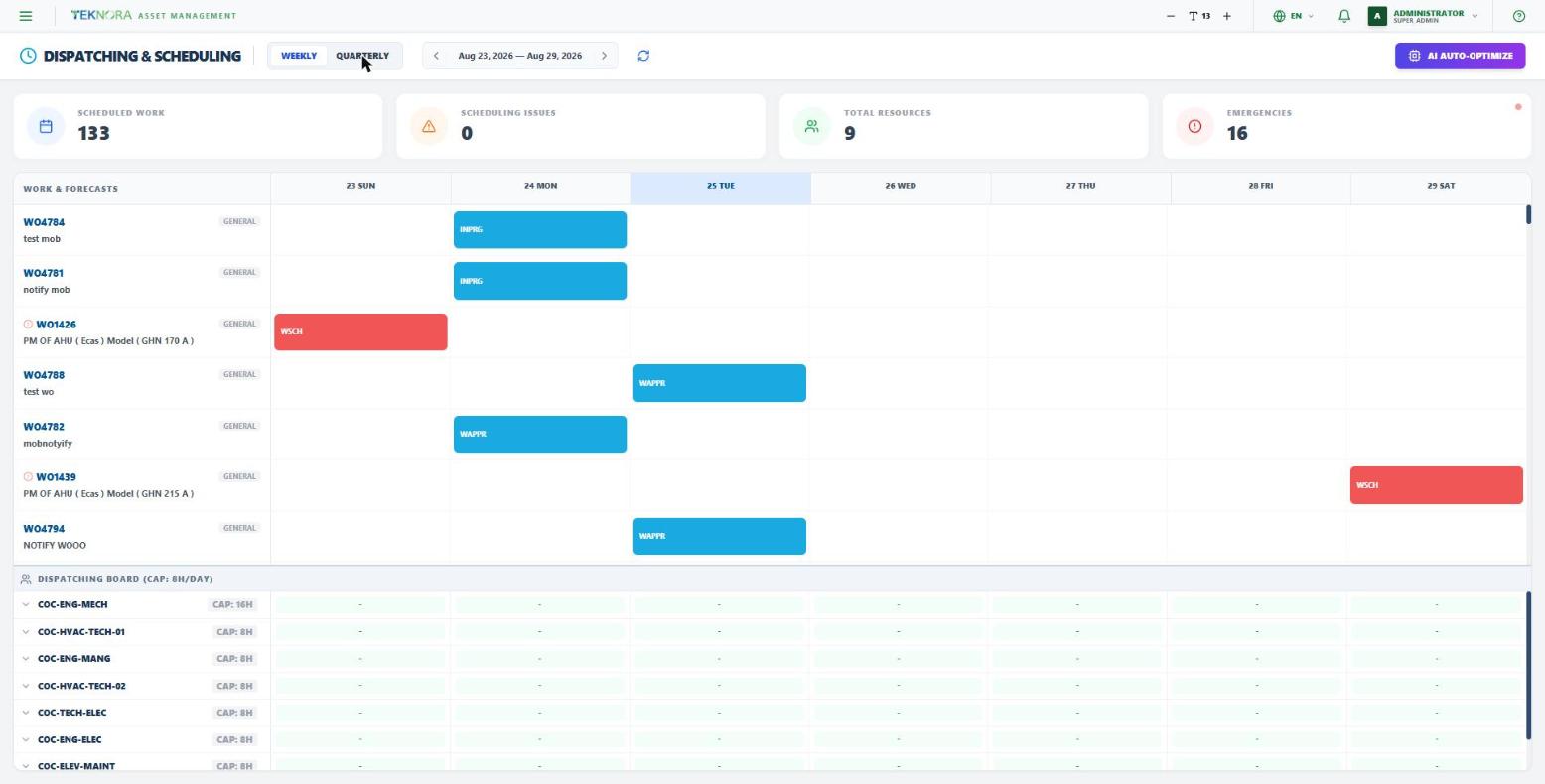
Weekly / Quarterly View
Switch between a day-by-day Weekly view and a week-by-week Quarterly view using the toggle at the top. Use the arrows to move the visible range backward or forward, and the KPI cards (Scheduled Work, Scheduling Issues, Total Resources, Emergencies) update to match whatever range is currently shown.
Work & Forecasts (the Gantt)
Every open Work Order (Waiting Approval, Approved, Scheduled, or In Progress) with a target or scheduled date inside the visible range appears as a bar. The color tells you the status at a glance - blue for a normal In Progress/Approved work order, red for a Priority 1 emergency or a PM forecast. Hover a bar for a quick summary (type, site, target asset/location, estimated duration).
Drag any bar to a different day in the same row to reschedule it - the Work Order's Scheduled Date updates immediately.
Dispatching Board (the heatmap)
Below the Gantt, every craft (trade) is listed with its total daily/weekly capacity, based on how many active workers you have in that craft. Click a craft row to expand it and see individual workers.
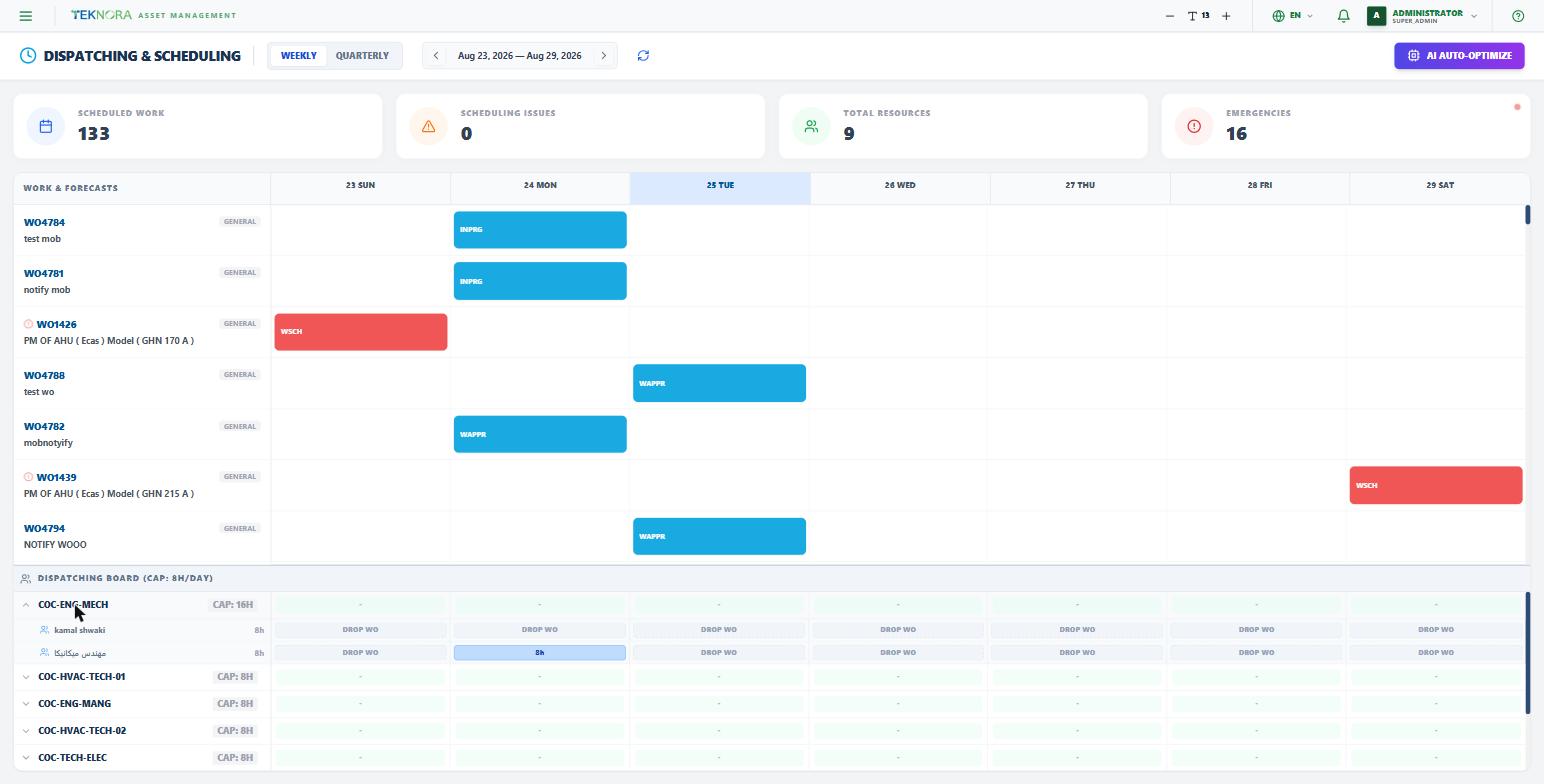
- Green - the worker/craft has spare capacity that day.
- Blue - fully booked, right at capacity.
- Red - overbooked past their available hours.
Drag a Work Order bar onto a worker's cell to assign that worker to the job on that day - this creates (or updates) the assignment and reschedules the Work Order to that date in one move.
AI Auto-Optimize
Click AI Auto-Optimize to let the AI re-level the schedule automatically. It looks at the highest-priority open work orders in the visible range and reassigns their scheduled dates so no craft is pushed past its already-committed daily capacity - it accounts for hours other work orders have already claimed on each day, not just a flat total.
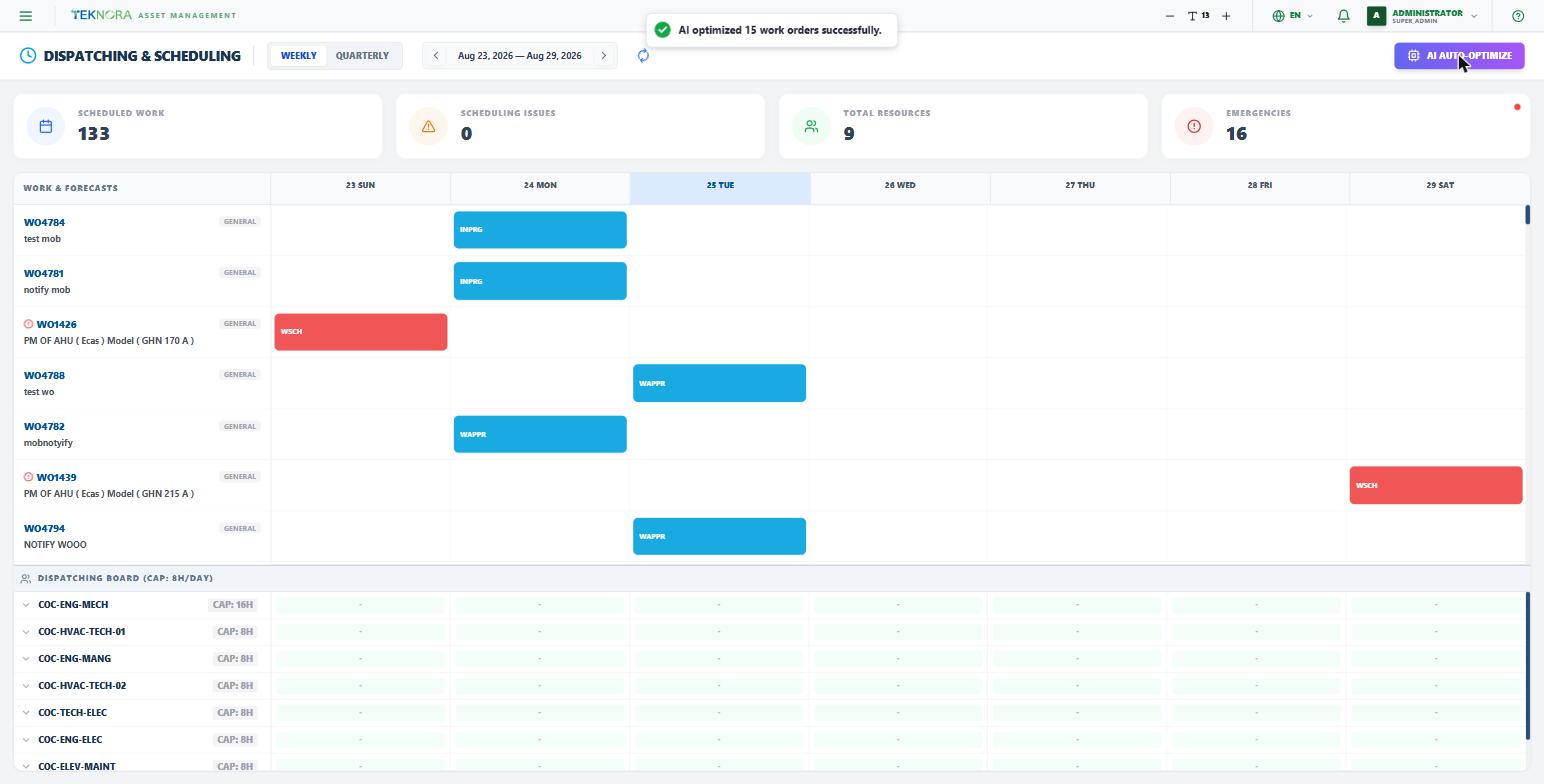
It only reschedules dates, not who's assigned
AI Auto-Optimize picks new dates for a batch of top-priority work orders - it does not assign specific workers. Use drag-and-drop onto the Dispatching Board for that.
Practical Steps
1. Find the work
Scan the Gantt for anything unscheduled or clustered on one day - the KPI cards at the top flag Scheduling Issues and Emergencies at a glance.
2. Reschedule or assign
Drag a bar to a new day to reschedule it, or drag it onto a specific worker's row in the Dispatching Board to assign and schedule it in one move.
3. Watch the heatmap
Keep an eye on the color under whoever you're assigning - red means you've pushed them past their available hours that day.
4. Let AI help with the bulk of it
When there's more open work than you can eyeball, run AI Auto-Optimize first, then fine-tune individual assignments by hand.