Issue/Transfer Details
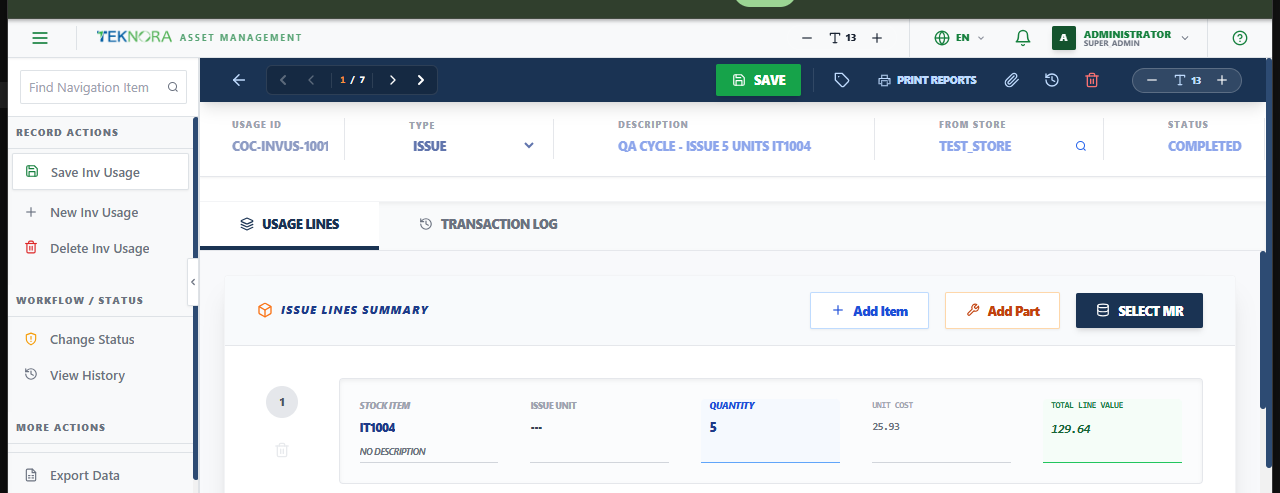
This screen records one stock movement - issuing material to a work order/asset/location, transferring between storerooms, or returning stock - and is where completing it actually moves inventory.
Screen layout
- Header: Type (Issue/Transfer/Return), Description, Issue Store, Status.
- Issue Lines Summary: The items being moved, each with quantity, unit cost (pulled from the item's current average cost), and total line value.
- Financial Charging & Reference (per line): Optionally charge the issue to a Target Location, Asset Number, Work Order Reference, or Debit GL Account - useful for tracking material cost against a specific job.
How to
1. Add lines to a transaction
Click Add Item (or Add Part) and search for the item. Enter the quantity - unit cost is filled in automatically from the item's current average cost once you save.
2. Pull lines from a Material Request
Click Select MR to pull an approved Material Request's lines directly into this transaction.
3. Complete the transaction
Save first (status starts at DRAFT), then change the status to COMPLETE. This is the moment stock actually moves - balances update immediately, and you'll see a confirmation that inventory levels were updated.
Completed transactions can't be deleted
Once a transaction's status is COMPLETED, it can't be deleted, since it's already affected inventory balances - this protects the accuracy of stock history.
FAQ
I entered a quantity but the unit cost still shows 0 - is that a bug? No - unit cost is resolved from the item's live average cost when you save, not while you're still typing.
Go to: Issues & Transfers list ← · Inventory Balances → · Material Requests →