Purchase Request Details
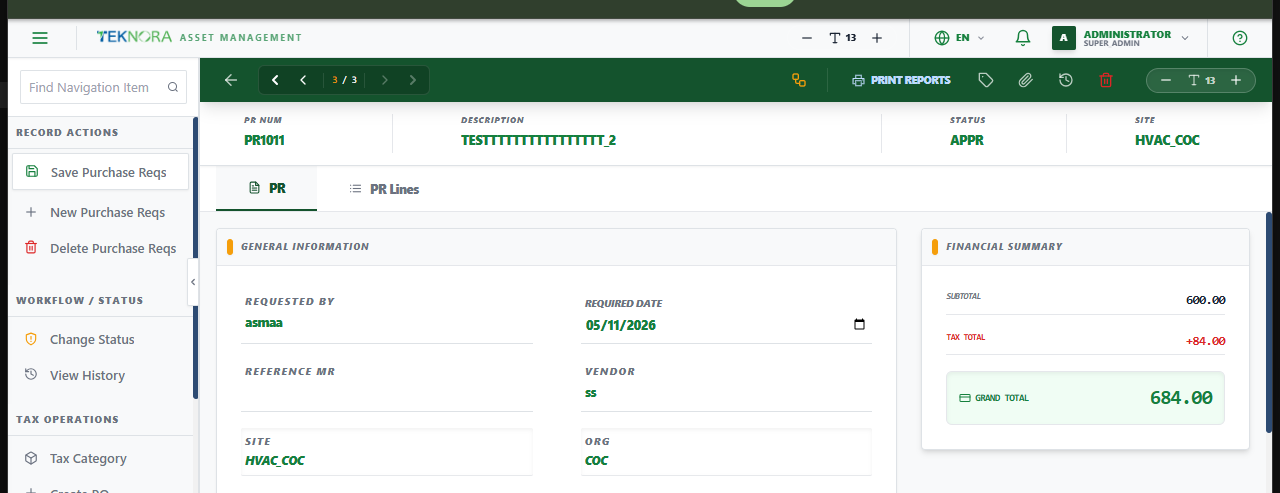
This screen holds one purchase request's header, financial summary, and lines - and is where you approve it and generate a Purchase Order once it's ready.
Screen layout
The header bar shows the PR Num, Description, Status, and Site. Two tabs organize the content:
- PR: General information (requested by, required date, reference MR, vendor, site/org) and the Financial Summary card.
- PR Lines: The requested items, as a master table with a detail panel for the selected line - styled the same way as the Spare Parts table on Asset Details, for a consistent look across the app.
Top toolbar actions
| Icon/Button | Function |
|---|---|
| Save | Saves the header and all lines |
| Route Workflow | Sends the record into its approval workflow (if configured) |
| Change Status (tag icon) | Opens the status-change dialog |
| Print Reports | Prints/exports the PR |
| Attachments | Attach or view files linked to this PR |
| History | Shows the PR's status change history |
| Delete | Deletes the record - only while WAPPR and with nothing generated from it yet |
Create PO (appears once APPR) |
Generates a Purchase Order from this PR's lines |
| Navigation arrows | Move to the first/previous/next/last PR matching your last list filter |
PR Lines tab
Each line shows Item #, Description, Item Type, Qty, Unit Cost, Tax %, and Line Total. Click a row to open its detail panel, where you can search/change the item, quantity, unit cost, tax category, or GL account.
- Add Manual Row: Adds a blank line.
- Delete (trash icon per row): Removes a line - blocked once the PR is no longer editable.
Lines lock once the PR is approved, closed, or cancelled
You can't add, edit, or delete lines on a PR whose status is APPR, CLOSE, or CAN - enforced both in the interface and on the server.
How to
1. Fill in and save a new PR
Enter a description, required date, and lines, then save.
2. Pull lines from a Material Request
Search Reference MR for an approved Material Request - its lines (and target storeroom) are pulled in automatically.
3. Approve a PR
Click the status icon, choose APPR, and confirm.
4. Generate a Purchase Order
Once APPR, click Create PO in the sidebar. You can accept the auto-generated PO number or type your own, then confirm - a new Purchase Order is created with the same vendor (if set) and all lines carried over.
FAQ
I approved the PR by mistake and need to change a line - what now? Reopen it via a status change if your workflow allows it. Otherwise, correct it on the resulting PO instead, since editing an approved PR's lines is blocked deliberately.
Where does the vendor come from? A PR can optionally carry a vendor, but it's not required to approve it (unlike a PO). If left blank, you'll set the vendor when creating the resulting PO.
Go to: Purchase Requests list ← · Purchase Orders → · Material Requests →