Asset Registry
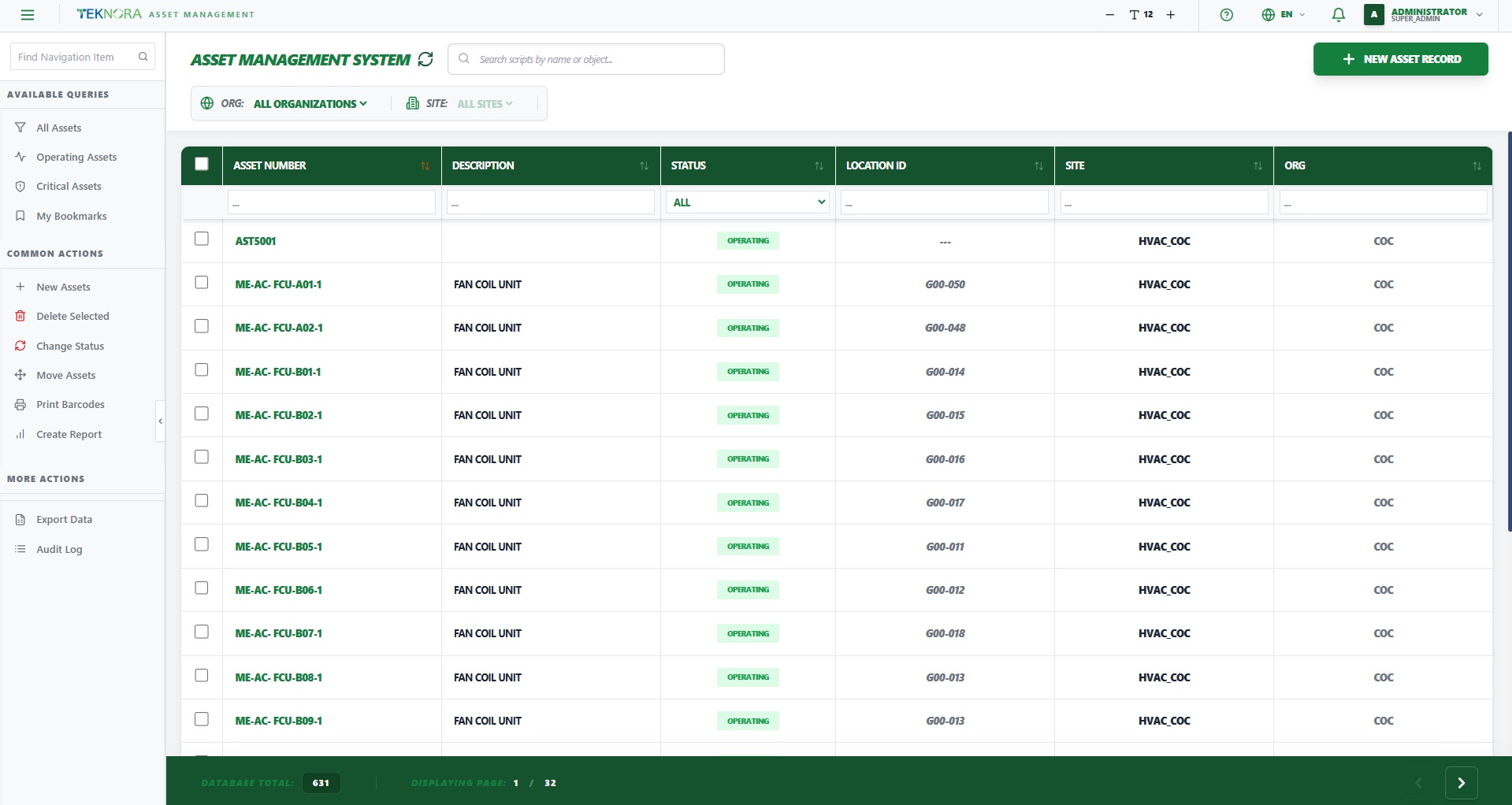
The Asset Registry is the starting point for working with every asset recorded in the system — equipment, machinery, HVAC units, and any physical item you need to track and maintain.
Purpose of this screen
- Browse all assets registered in the organization/site.
- Search and filter for a specific asset quickly.
- Open any asset's details screen by clicking on it.
- Create a new asset.
Key screen elements
| Element | Function |
|---|---|
| New Asset | Opens an empty details screen to enter a new asset |
| Search box | Quick text search on asset number or description |
| Org / Site filter | Sets the search scope — a specific organization or all sites |
| Sortable column headers | Click any column (asset number, description, status...) to sort ascending/descending |
| Filter row | Right below the column headers — type in any column to filter by it |
| Status Badge | A distinct color per status (OPERATING in green, DOWN in red, etc.) |
How to
1. Search for a specific asset
Type the asset number or part of the description in the top search box, or use the filter row below the column headers to filter a specific column (like status or location).
2. Open an asset's details
Click any row in the table to open its Asset Details screen.
3. Create a new asset
Click New Asset at the top of the screen. An empty details screen opens for you to enter the new asset's data and save it.
4. Sort by a specific column
Click any column header — the first click sorts ascending, the second sorts descending.
5. Navigate between pages
If the number of assets is large, you'll find navigation buttons (previous/next) below the table to move between result pages.
About scope
If you're an admin or have "all sites" permission, you'll see a badge indicating whether you're viewing all sites or just one. This affects how many assets appear.
FAQ
Why can't I find a specific asset? Make sure the Org/Site filter is set correctly, and that no leftover text filter in the filter row is hiding it.
What's the difference between "Status" and "Is the asset running?" "Status" is the official system status (OPERATING, DOWN, DECOMMISSIONED...), while "Is the asset running?" is a quick operational indicator shown on the details screen.
Go to: Asset Details screen →